
Attendance tracking that bends to how your school actually runs
Most attendance tools give you two buttons: present and absent. Real schools are messier than that. A student joined the online section. Another is recording the lesson to watch later. The teacher is out and the class still needs marking. A parent should hear about a genuine absence — but not because a nine-year-old tapped the wrong button.
MarkTrack's attendance bends to how your school actually runs. You define your own statuses, decide who can mark, always see who did, and read the whole school's day at a glance. Here's the full picture.
1. Statuses that match your school, not the other way round
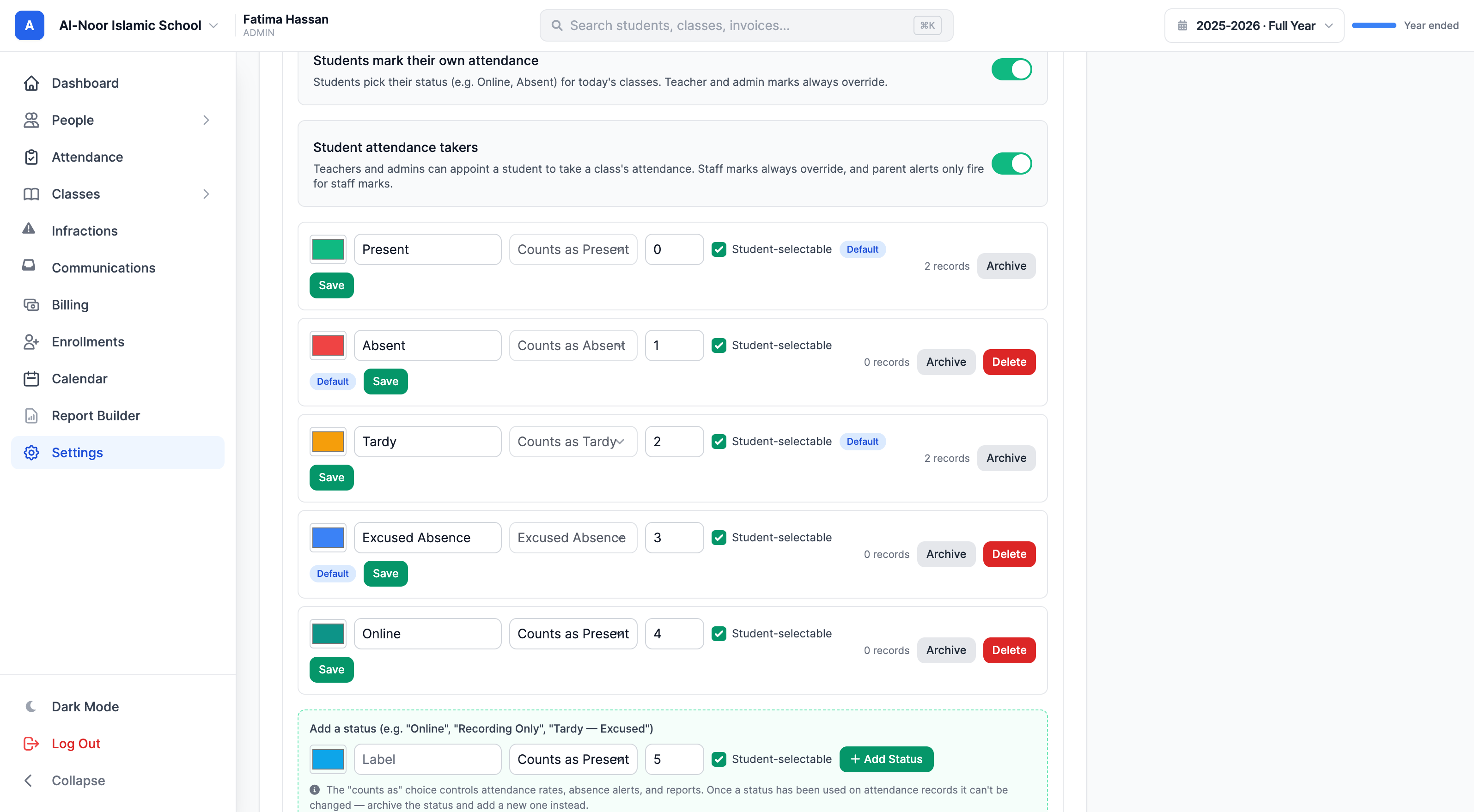
Start in Settings → Attendance. Alongside the built-in Present, Absent, Tardy, and Excused, you can add your own — "Online", "Recording Only", "Tardy — Excused", whatever your school needs. Each custom status maps to one of the four base categories (it counts as present, tardy, or absent), so your attendance rates, alerts, and reports stay correct while your teachers get labels that mean something.
You control this per school, and you can mark which statuses students are allowed to pick themselves.
2. Let students mark their own attendance
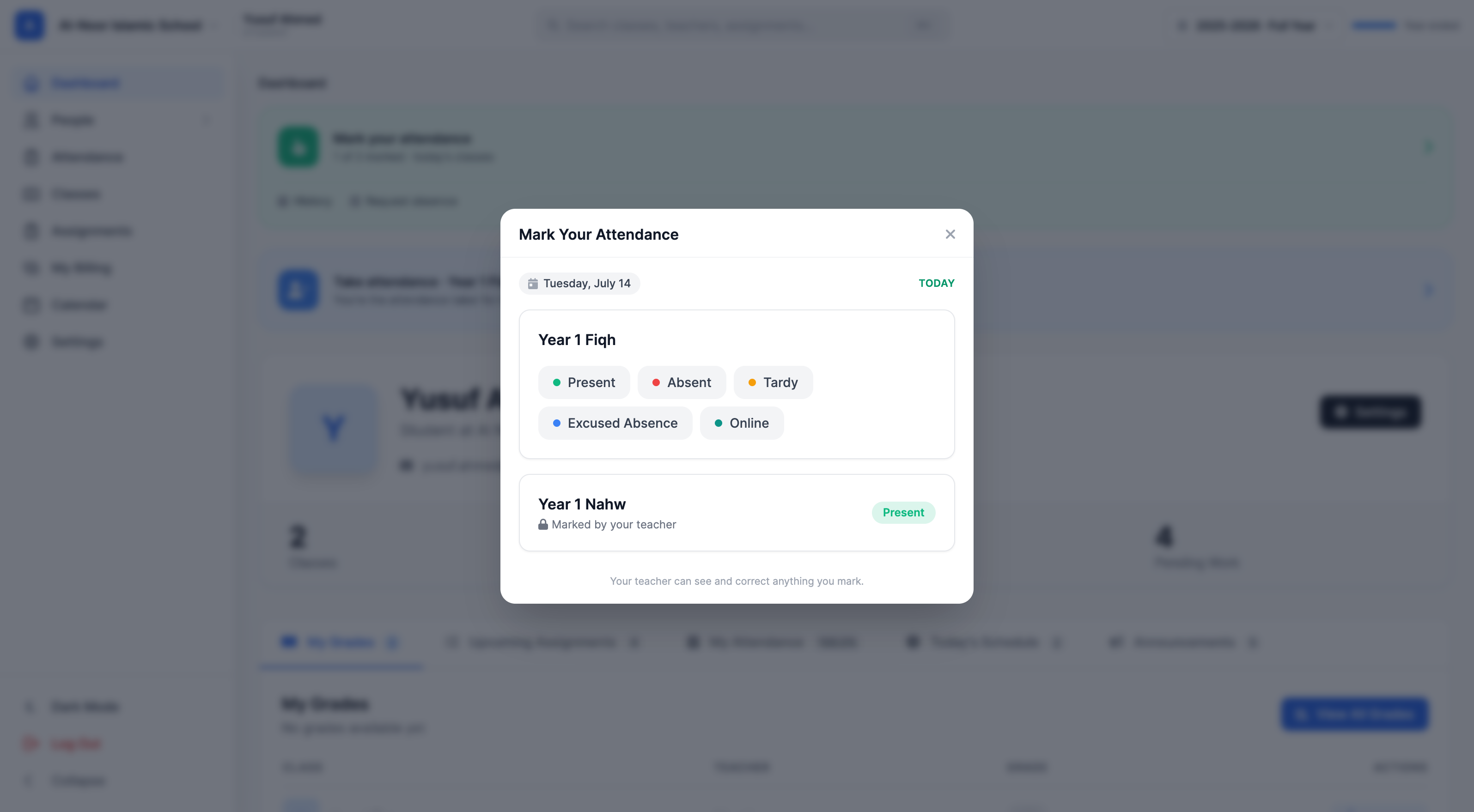
Flip on student self-marking and students get a clean "Mark your attendance" card on their dashboard. They pick how they attended each of today's classes — in person, online, away — from the statuses you allow. It's today-only, and the moment a teacher marks them, the student's version locks. Nothing a student does is ever the last word.
3. Appoint a student to take the class's attendance
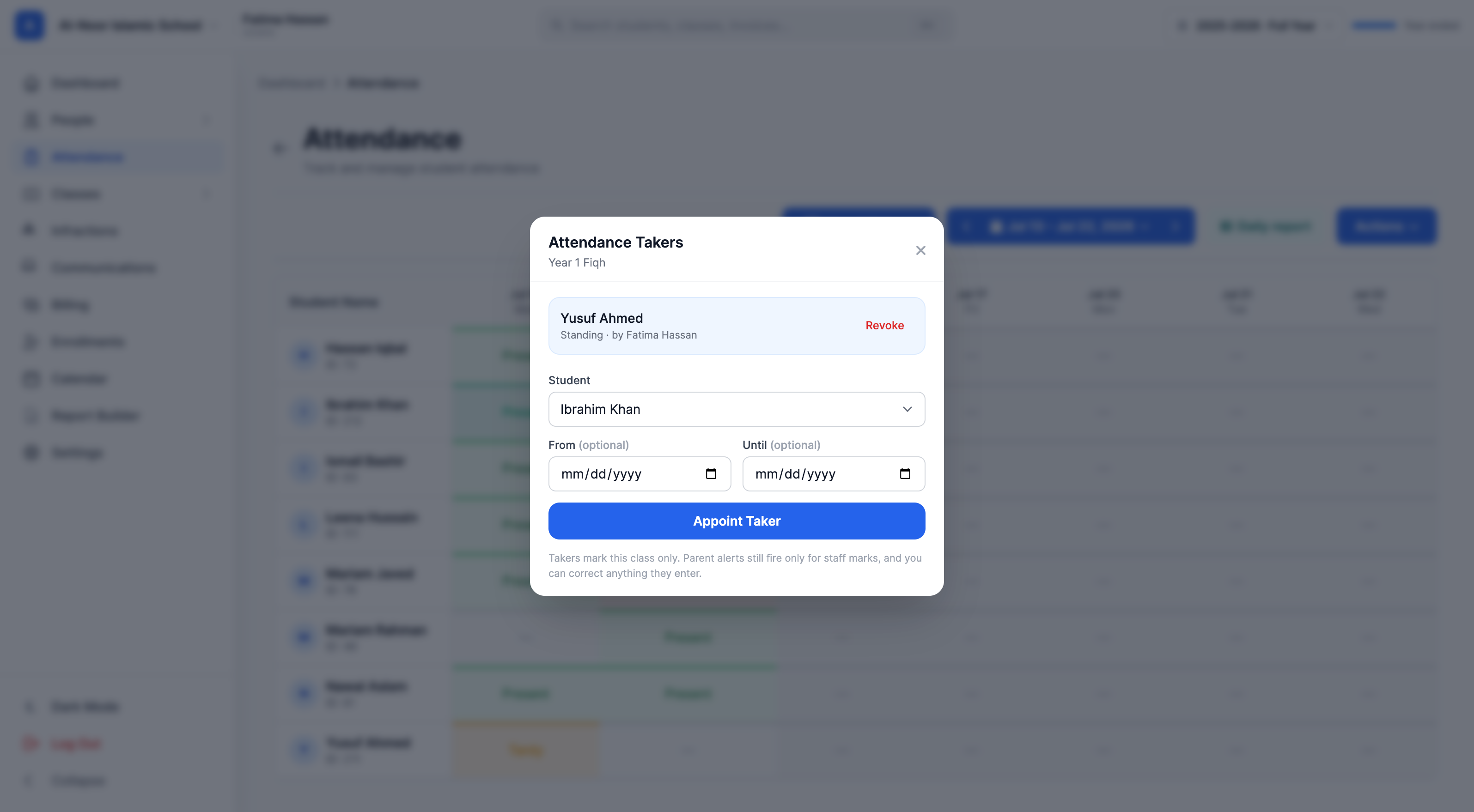
Some days the teacher is out, or you simply trust a responsible student to run the register. Turn on attendance takers and any teacher or admin can appoint a student to take a specific class's attendance — standing, or for a set date range.
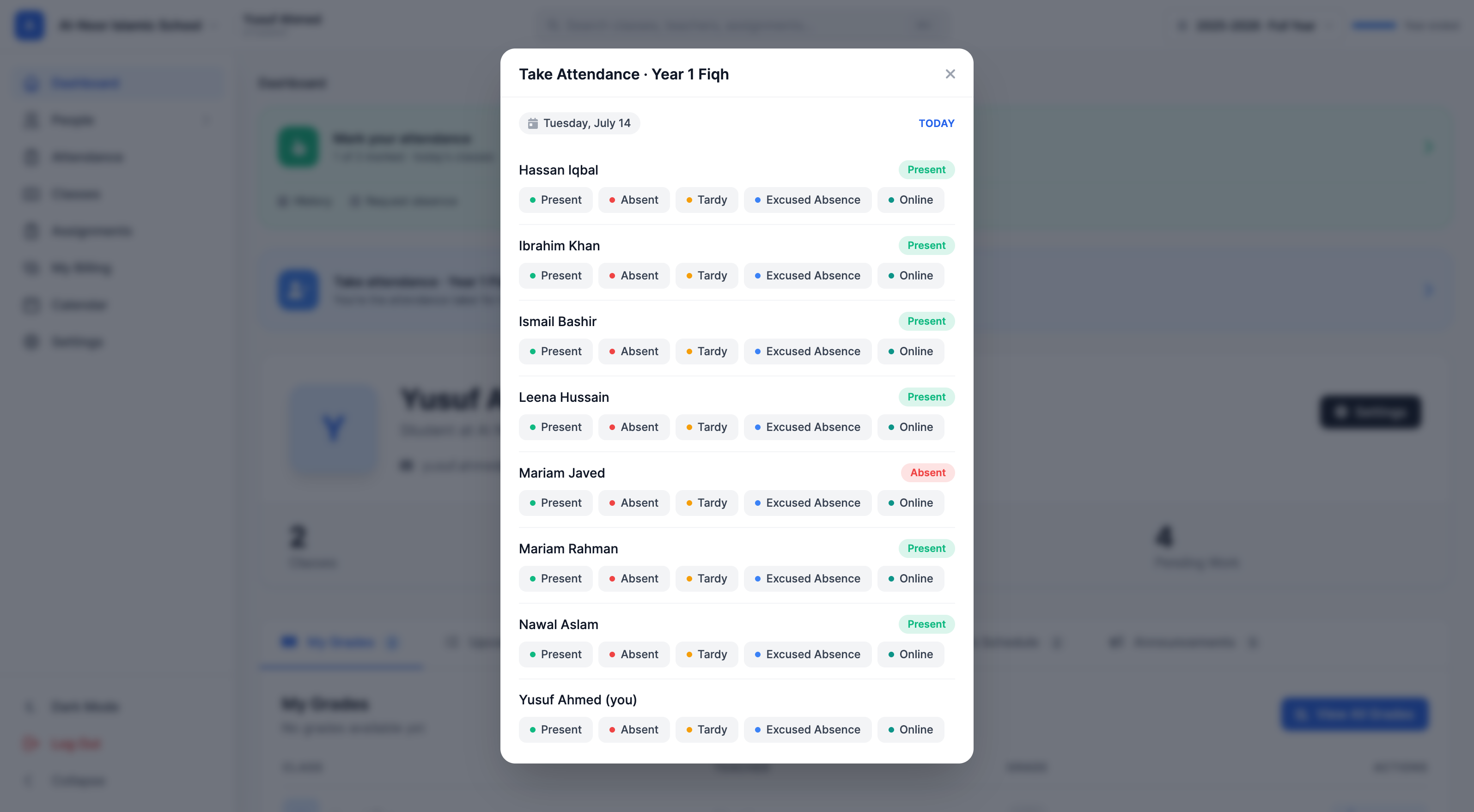
The appointed student gets a "Take attendance" card on their own dashboard, opening a stripped-down register: today's roster, the same status buttons, and nothing else. They can't touch a teacher's mark, can't see private notes, and can't mark any class but the one they were given.
4. Always know exactly who marked each student
The instant anyone other than the teacher marks a student, the grid tells you. A small dot appears on the cell — teal for a student's self-mark, blue for a class helper, and a hollow ring when staff corrected someone's mark. Tap it and you see the whole story: who marked it, in what role, and when.
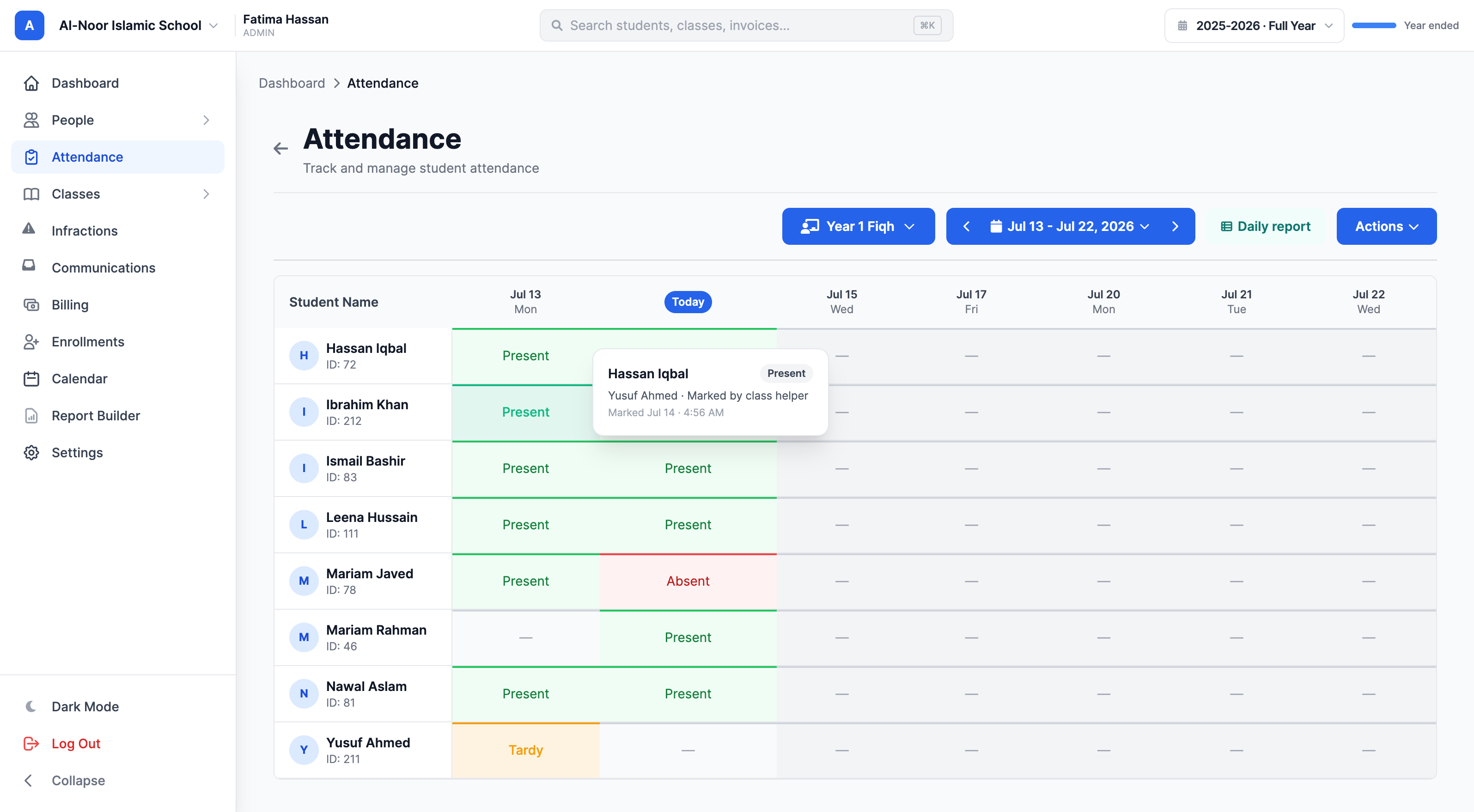
Parents and students never see who marked them — only your staff do. And it flows to the mobile apps too, with the same privacy.
5. The whole school's day, on one page
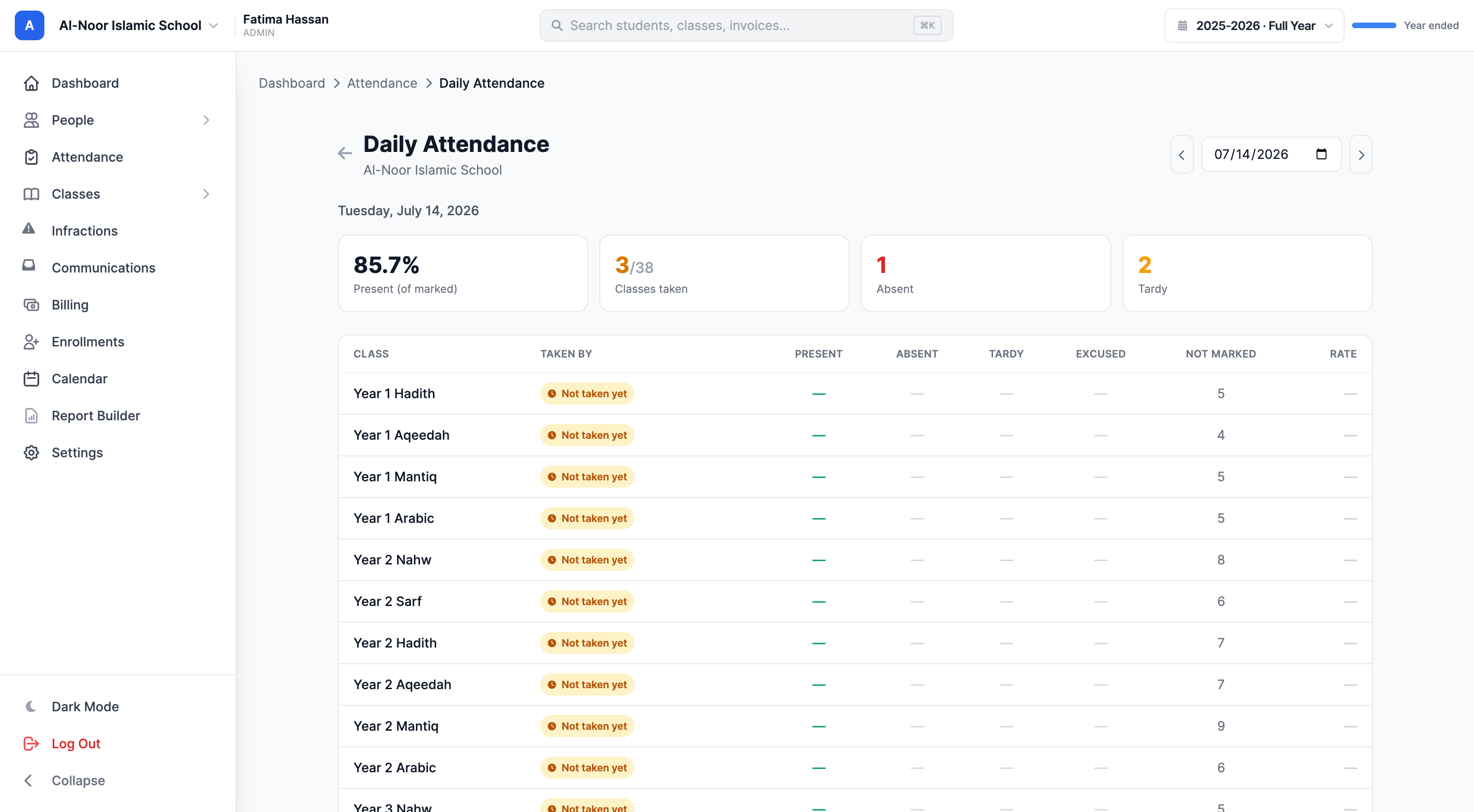
Every morning an admin wants one answer: is attendance done, and who's absent? The Daily report puts every class for the day on a single, compact page — who took it, the counts, the rate, an amber "Not taken yet" flag on the classes still missing, and a follow-up list of everyone absent or tardy across the whole school.
6. Parent alerts that fire for the right reasons
Here's the part that makes all of the above safe: parent alerts only fire for marks made by a teacher or admin. A student self-marking absent, or a class helper marking a classmate absent, never texts or emails a parent on its own — the alert waits until staff confirm it. You configure the channels (email digest, SMS after class, or both), a grace window so a mid-class correction cancels the text, and which statuses trigger an alert at all. Trust-based marking, without the false alarms.
It all works on the phone, too
Custom statuses, self-marking, attendance takers, and the who-took attribution are built into the MarkTrack iOS and Android apps — with the same staff-only privacy on who marked whom.
Attendance shouldn't force your school to fit its buttons. Define the statuses you use, share the marking without losing control, and see the whole day in one place. That's flexible attendance tracking — the way it should work.
Interested in trying out MarkTrack for free?
Get in touch