
Introducing Salah Tracker for MarkTrack
Most Islamic schools already keep some record of salah. Often it's a chart on the wall of the prayer room, or a teacher who remembers who was at Dhuhr. That record rarely leaves the building, and it's hard to tell whether things are getting better.
Salah Tracker puts that record in MarkTrack, next to attendance and Hifz. Teachers mark each prayer in a tap. School leaders see which prayers and which students need encouragement. Parents see their own child's month.
Here is how it works.
1. Turn it on for your school
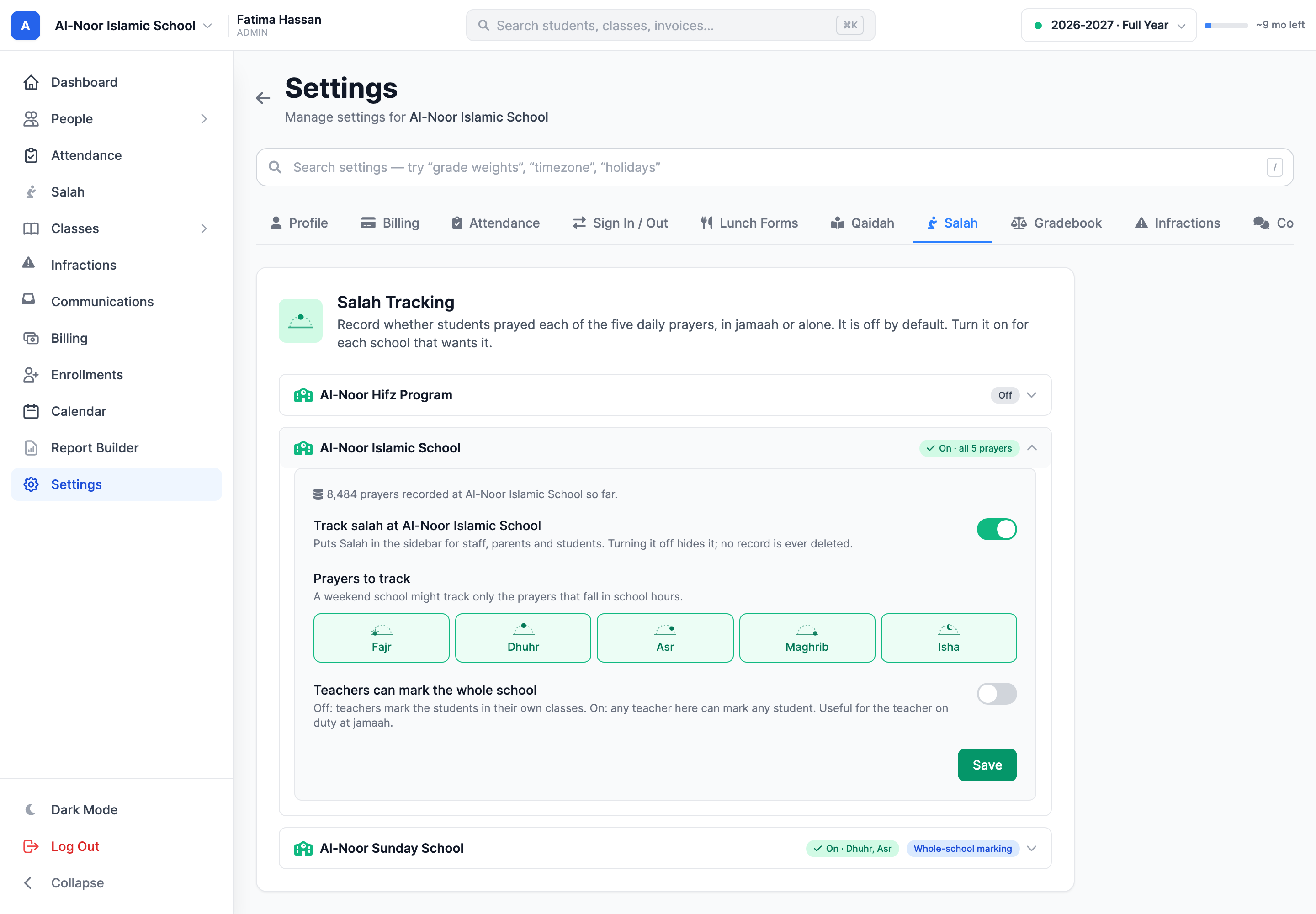
Salah Tracker is off for every school until an admin turns it on. Open Settings → Salah, open your school and switch on Track salah.
Then make two choices. First, which prayers you track. A full-time or boarding school might track all five. A weekend school might only track Dhuhr and Asr, the prayers that fall in school hours. Second, who can mark. By default a teacher marks the students in their own classes. If one teacher looks after the whole school at jamaah, turn on Teachers can mark the whole school.
Each campus has its own settings. Turning Salah off later only hides it. Every record stays and comes back if you turn it on again.
2. Mark a prayer in a few taps
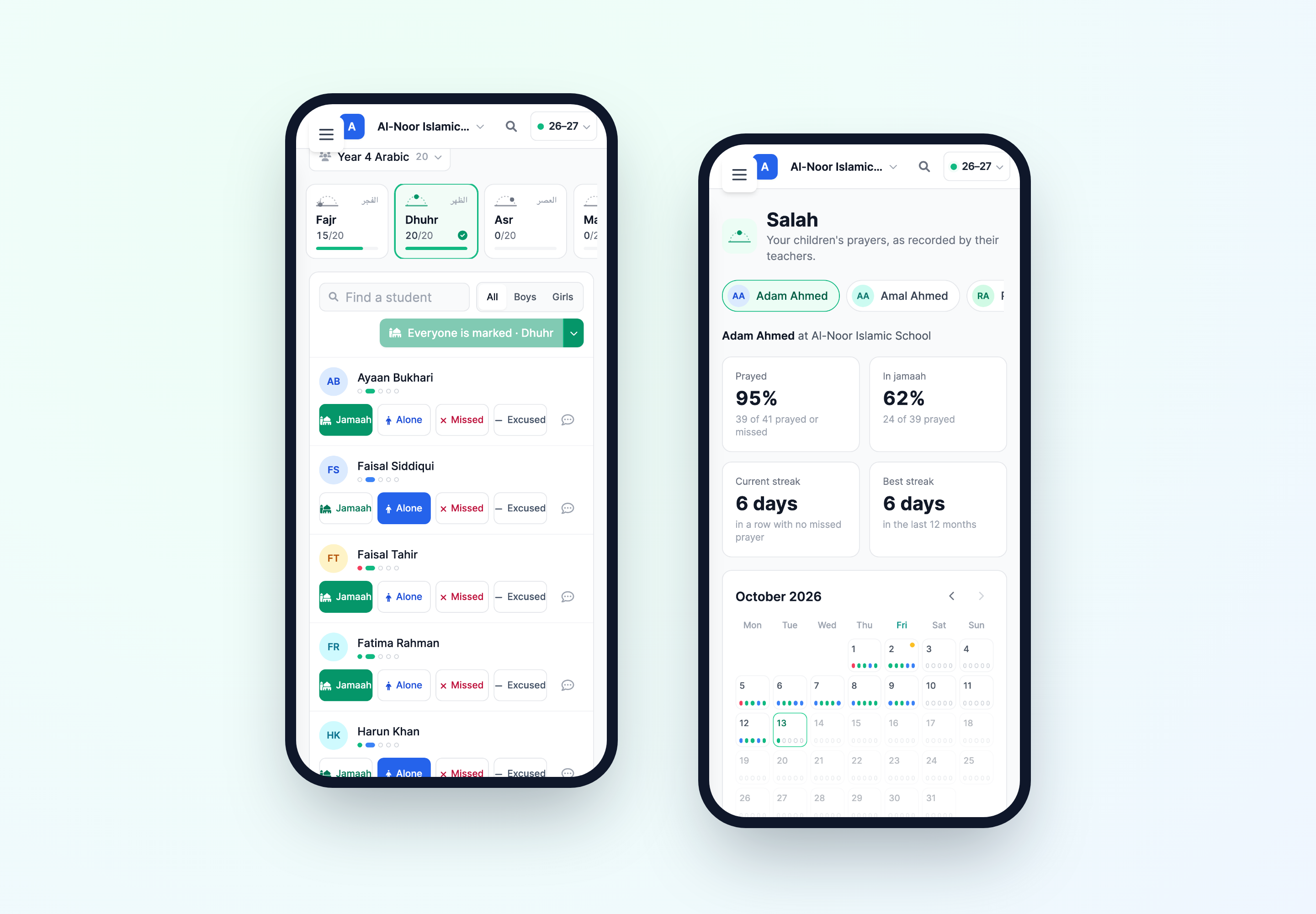
Open Salah in the sidebar. You land on Mark for today. Teachers start on their own class and admins on the whole school, and you can switch to any class or level you look after. Pick the prayer at the top. Each prayer shows how many students are marked so far, and a tick once everyone is. On a Friday, Dhuhr reads Jumu'ah.
Each student has four buttons: Jamaah, Alone, Missed and Excused. Every tap saves on its own. There is no Save button to forget.
After jamaah, the fastest way is to mark everyone at once. Mark unmarked as Jamaah marks every student you haven't marked yet. Then change the few who prayed alone or weren't there. If you tapped too soon, the message that appears has an Undo.
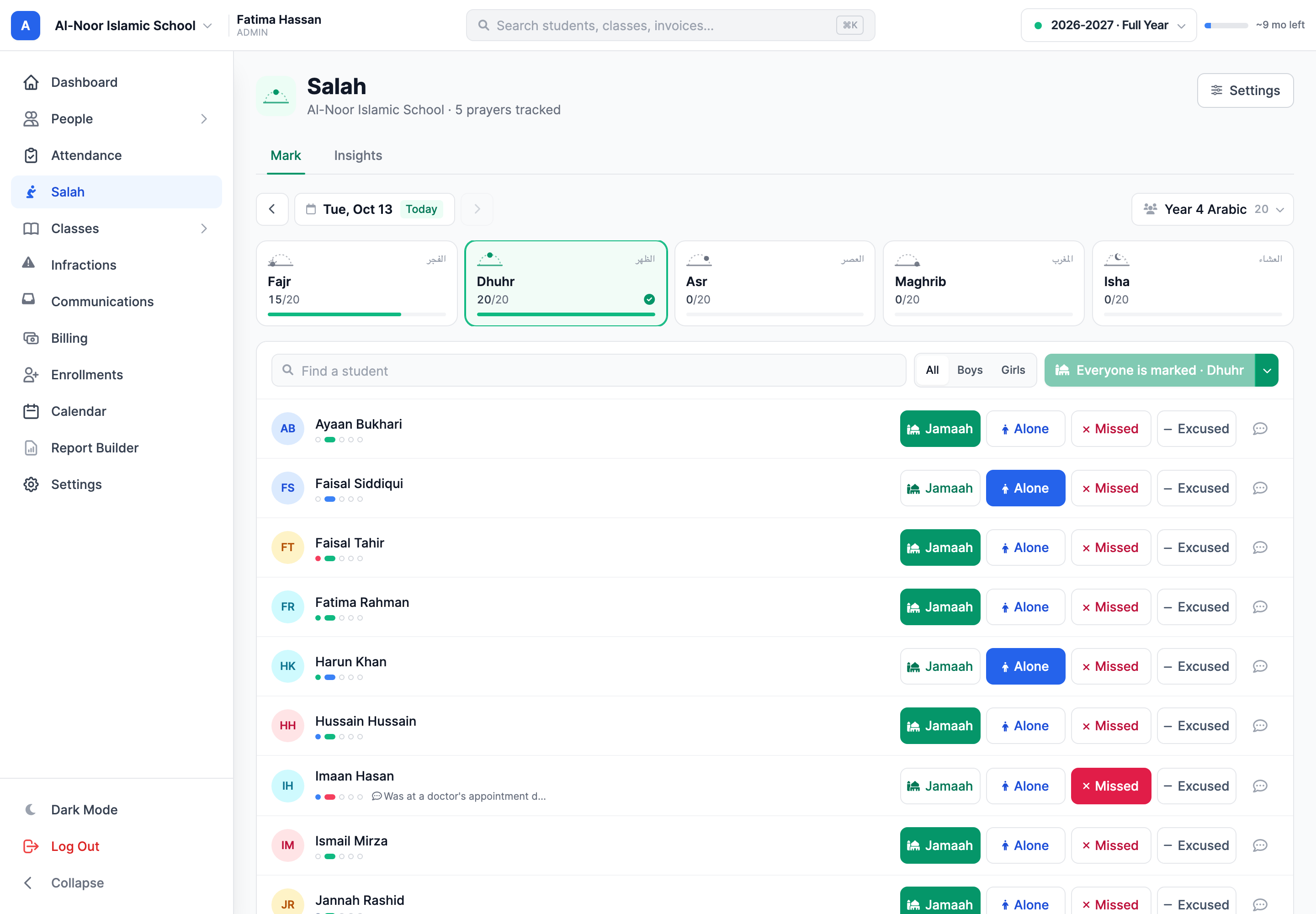
Search finds a student by name, and a Boys and Girls filter helps when brothers and sisters pray in separate halls. "Mark unmarked" only touches the students you can see, so you can mark the brothers' jamaah first and the sisters' after.
3. Add a note when a mark needs context
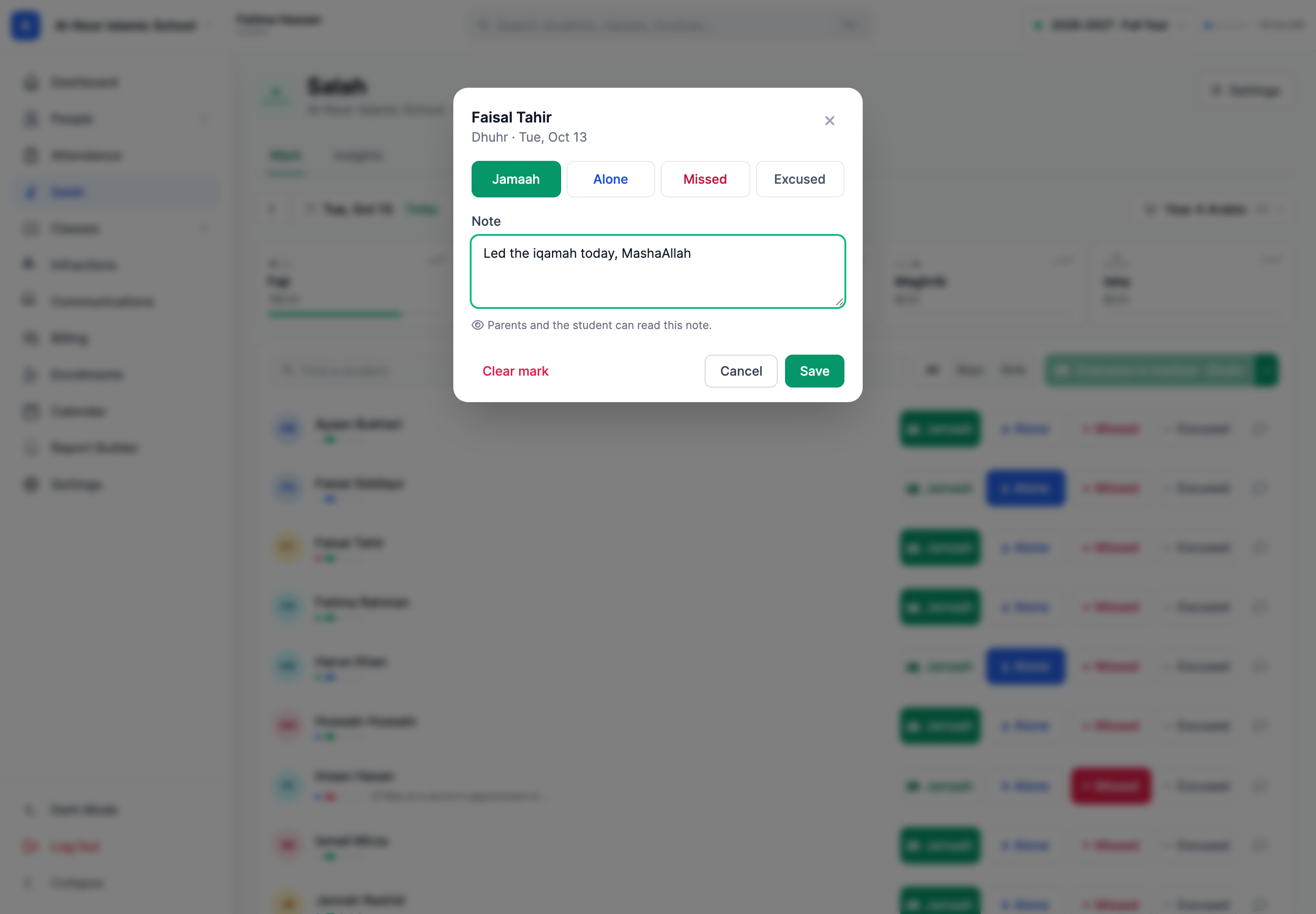
A mark doesn't always tell the whole story. A student came in late from another class. Another led the iqamah. Tap the note button on any row to add a short note. You can set the status in the same window.
Notes are written for families. Parents and the student can read them. They never see which teacher recorded a prayer.
4. See which prayers need attention
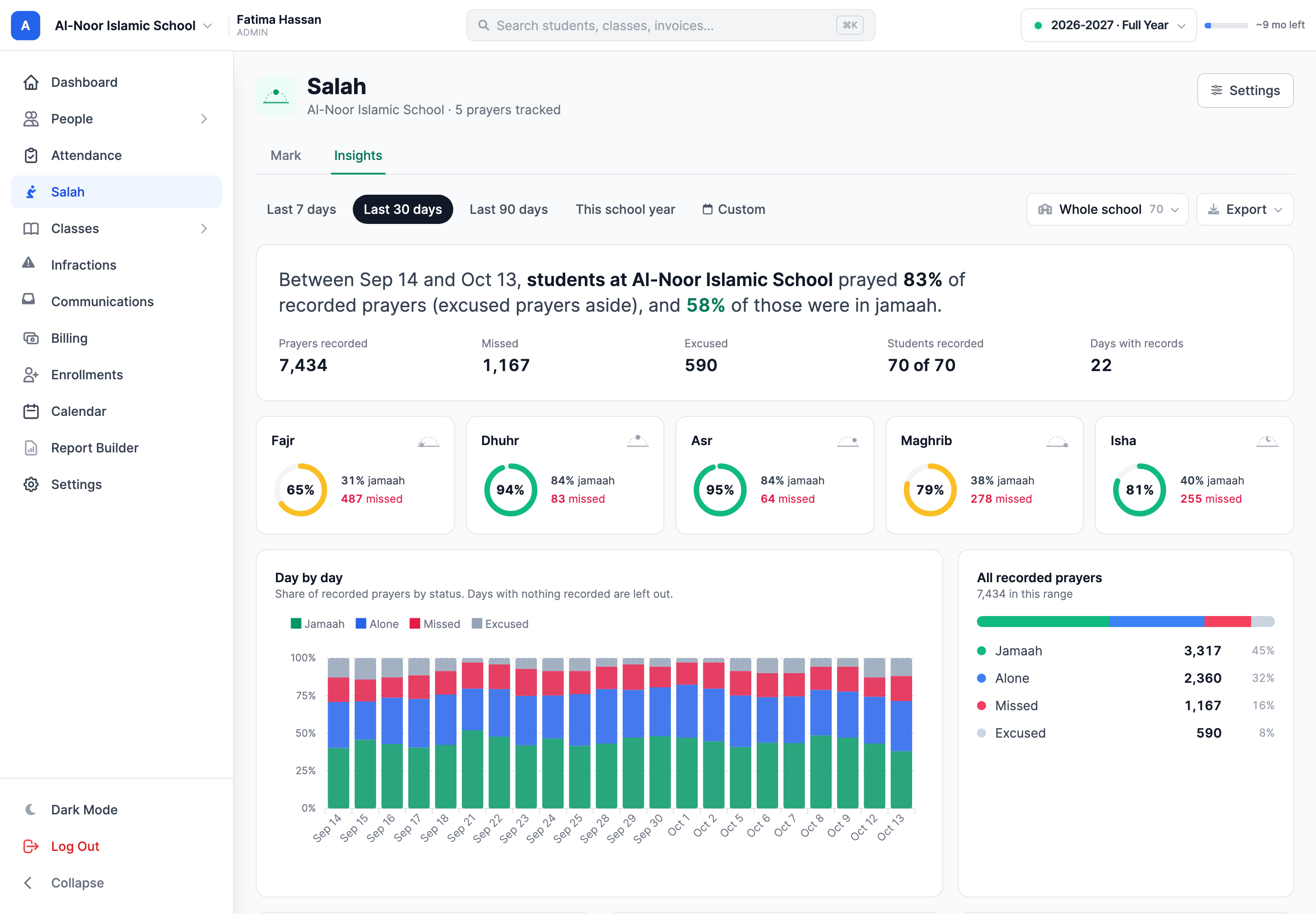
The Insights tab answers the questions a principal actually asks. How many prayers are students praying? How many in jamaah? Which prayer is slipping, and which class?
Choose the last 7, 30 or 90 days, this school year, or your own dates. Look at the whole school, one level or one class. You'll see a rate for each prayer, a day-by-day breakdown, each class from lowest to highest, and two short lists: students below 80% who need attention, and the most consistent.
Here is exactly how we count:
- Prayed is jamaah plus alone, out of every prayer marked jamaah, alone or missed.
- In jamaah is jamaah out of the prayers that were prayed.
- Excused prayers are left out of both. Use Excused for a sister on her cycle or a student who is unwell. Families only ever see the word Excused, never a reason.
- A prayer nobody marked is not a missed prayer. It simply isn't counted.
Export downloads a summary by student or the full daily log, as Excel or CSV.
5. Look back at one student
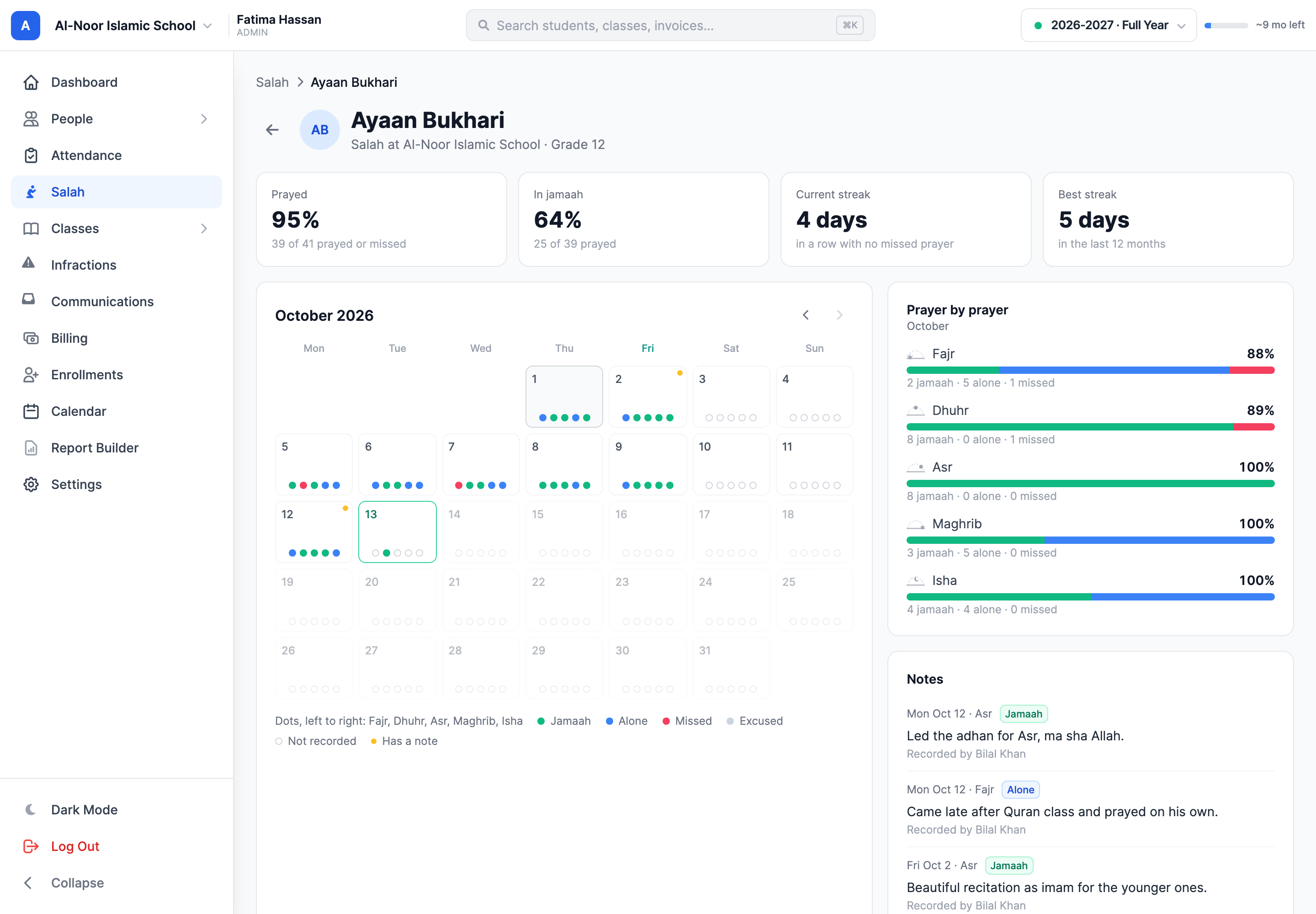
Click any student's name to see their month. Each day on the calendar has five dots, one for each prayer, colored by what was recorded. Above it you'll see their prayed and jamaah rates and their streak of days without a missed prayer. Weekends and other days with nothing recorded don't break a streak.
Open a day to see each prayer, who recorded it and any note. Staff can change a mark or a note right there.
6. Parents and students see their own record
Once Salah is on, parents see Salah in their sidebar. They get the same calendar for each child, with the streak and the teachers' notes. A parent with more than one child switches between them at the top. Students who have their own login see their own page.
It all works in a phone's browser, for the teacher marking in the prayer hall and for the parent checking in at home.
7. Reports
The Report Builder has a new Salah group with two reports. Salah Summary lists every student with their counts and rates. Missed Prayers lists the students who missed the most, prayer by prayer, with a parent to contact. Both can be saved, printed or downloaded like any other report, and they use the same numbers as the Insights tab.
Getting started
Open Settings → Salah, turn it on for one school and mark your first Dhuhr. The step-by-step guide is in the Help Center, and there is a short tour on the Salah Tracking feature page.
If your school is new to MarkTrack, talk to us about getting set up.
Related reading
Interested in trying out MarkTrack for free?
Get in touch