
Introducing Lunch Forms for MarkTrack
Lunch orders should end with a clear kitchen list, a record for each student and payments the office can track. Lunch Forms brings those steps together in MarkTrack: build a menu, share it with families, review requests and prepare for the day.
Here is the complete journey, from turning the feature on to looking up last month's lunches.
1. Turn Lunch Forms on for your school
Open Settings → Lunch Forms, expand your school's section, enable lunch ordering and save. Lunch Forms is off by default for every school. Enabling it adds the sidebar entry for that school’s admins, parents and students.
Each campus has its own setting. A school that does not offer lunch can leave it off. Turning it off later hides the feature and stops access to its ordering links; existing records are kept.
2. Build the week's menu
Open Lunch Forms → New Menu. Give the menu a name, choose its dates and set an ordering deadline. In the menu editor, add meals to each day with a name and price. Add a description or photo to help families choose, and set available servings when the kitchen has a limit. Leave the serving limit blank for unlimited availability.
Save the menu, check its overview and select Publish menu when it is ready. A draft gives the office time to prepare before families can order. For a returning favorite, Duplicate creates a draft you can adjust for the next week.
The editor opens in a modal, so the office can make changes and return to the menu table. If a meal already has orders, changing its name or price keeps the original details on those existing orders.
3. Share a form that works on a phone
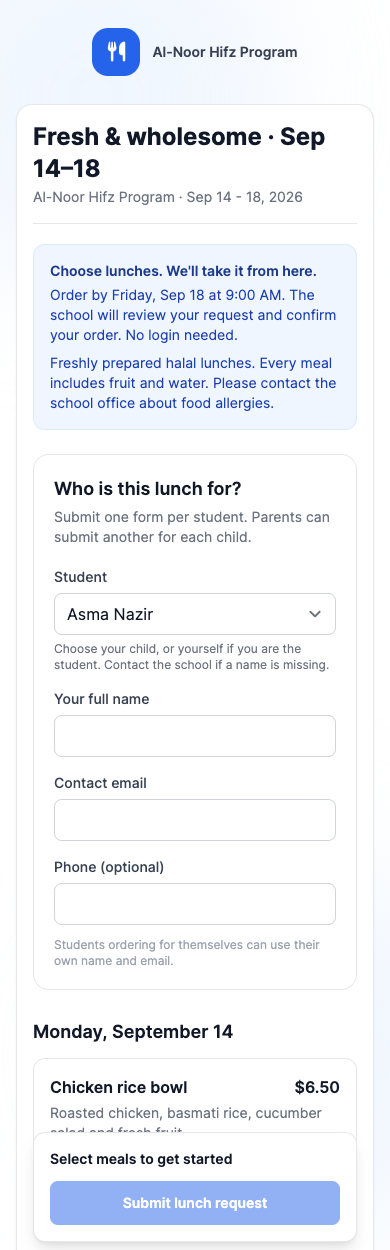
Open the published menu's Overview and copy the public lunch form link. Parents and students can open this link in their phone's browser without logging in.
The form uses MarkTrack's blue and white design. Families choose the student from the school's dropdown, enter their contact details, select meals and quantities, and review the running total before submitting. Students ordering for themselves choose their own name. A parent with several children submits one request per child.
A missing student name is a reason to contact the school office. The form does not create a new student or ask families to type a student's name from scratch.
After submission, a confirmation page shows the request and its status. A public request needs school approval. It does not take payment at submission, and available servings are checked again when the office approves it. Families should keep their confirmation link to check the result. A menu whose deadline has passed, or which the office has closed or archived, shows an ordering-closed message.
4. Review requests in the office
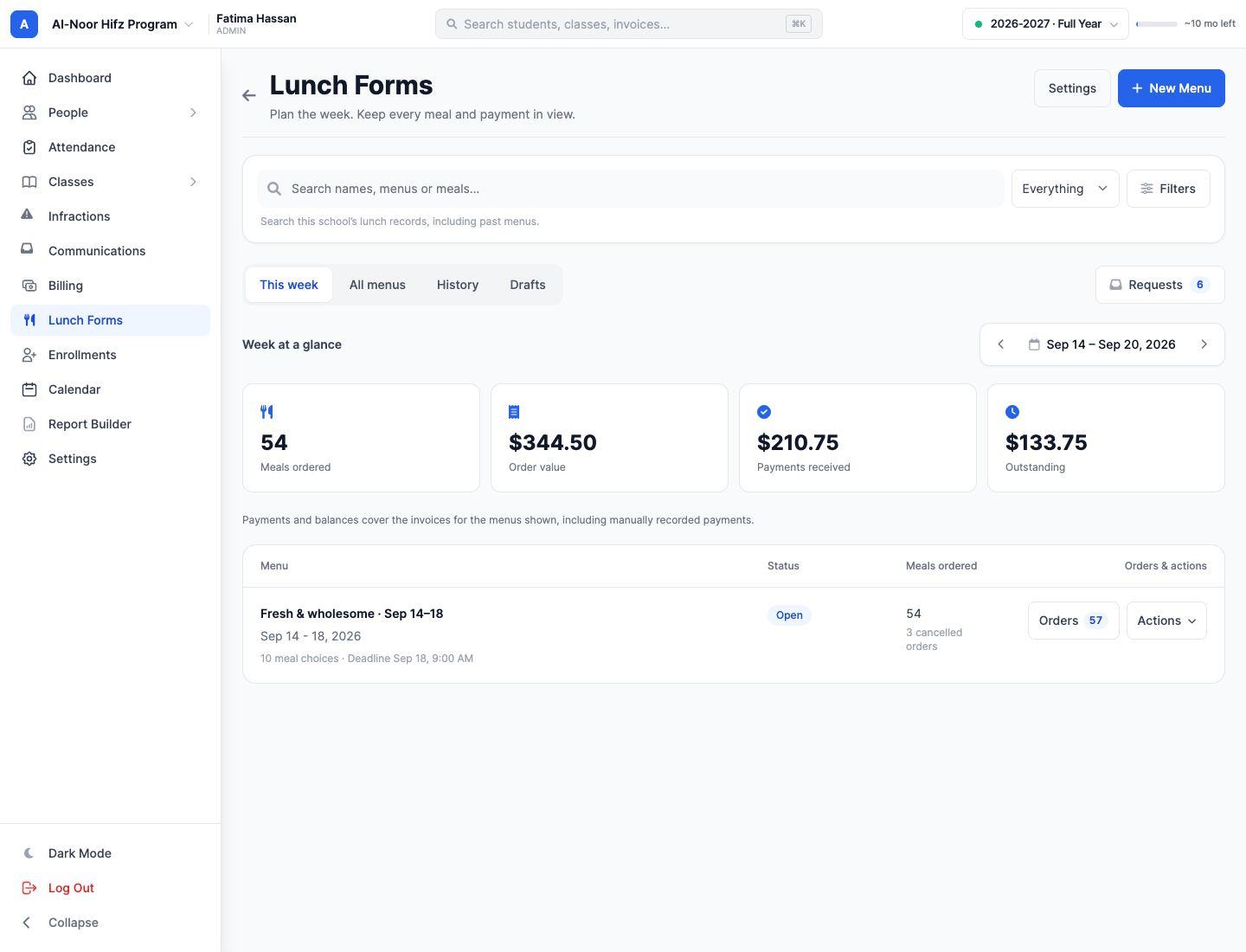
The dashboard's Requests button shows how many requests are waiting. Open it and use All Requests, Pending, Approved or Declined to filter the list. The tabs update inside the same modal.
Expand a request to see the selected student, contact details, meals, quantities and notes. Confirm the linked invoice recipient, then choose Approve & create invoice or Decline request. Approval creates the order and its billing entry together.
If the last serving has already been taken, the meal price changed after submission, or the same student already has that meal ordered, approval stops with an explanation beside the request. The office can resolve the issue with the family without creating another charge. A repeated submission can appear as a separate pending request; review those before approving.
5. Track invoices and record payments
Open a menu's Orders button to review its students, meals, quantities, order status and payment status. The number beside Orders counts the recorded orders, including cancellations; the dashboard's Meals ordered total counts active meal quantities.
Use View invoice / record payment to open the existing billing workflow. When a family pays the office, record the payment there, including cash where appropriate. The lunch dashboard reflects those invoice payments in Payments received and the remaining Outstanding balance.
The payment figures cover the invoices associated with the menus in the current view. Changing the view changes the set of menus being summarized.
6. Let families manage their own lunches
Families who already use MarkTrack can also open Lunch Forms from their sidebar. Parents switch between linked children; adult students see their own meals. Where several published menus are available, choose the menu to view.
Orders placed from a signed-in family account are confirmed directly, with an invoice created or updated. The public link uses the review step described above. Both paths respect the ordering deadline and available servings.
Before the deadline, eligible unpaid orders offer quantity changes and cancellation. Paid or otherwise locked orders need the office's help. Order history keeps earlier meals, quantities, amounts and statuses together, with invoice links for the billing recipient.
7. Give the kitchen a practical daily list
From a menu's Actions, choose Kitchen counts. Switch between dates to see what the kitchen needs to prepare. Pending requests and cancelled orders do not increase the confirmed meal count.
Print / PDF produces a clean daily sheet with meal totals and student orders. A typical day fits on one page; larger rosters continue onto additional pages so names remain readable. Export CSV gives the office the same selected day's data for a spreadsheet.
8. Find an old order without digging
Use This week for daily work, All menus for the wider view, Drafts for preparation and History for past, closed and archived menus. Each menu keeps access to its recorded orders and payment statuses.
Search by a name, menu name or meal item. Search covers this school's menus, orders and requests, including historical records. Narrow results by record type, status, payment status or dates when you need a specific answer.
When a week is finished, close ordering or archive the menu. Archiving keeps its orders and invoices available for later reference.
Ready for your next lunch day
Start with one school and one menu. Publish it, share the form, review the incoming requests and print the kitchen list. The office and families will have a shared record of what was ordered and what has been paid.
Open Settings → Lunch Forms to get started. If your school is new to MarkTrack, talk to us about getting set up.
Related reading
Interested in trying out MarkTrack for free?
Get in touch