
Sign In / Sign Out, screen by screen: the complete guide
This is the full walkthrough of MarkTrack's Sign In / Sign Out: every screen an administrator sets up, every screen a parent sees at the door, and every record it leaves behind. Follow it top to bottom and you will have a working keypad at your entrance and a defensible answer to who collected this child, and when.
The short version: a parent gets a 4-digit code. They type it on a tablet at the door, tap their child, type their name, and tap Confirm. No app to install, no password to remember. What the school gets back is a timestamped record naming the person who collected the child and the exact sentence they signed.
Part 1 — Turning it on
Sign In / Sign Out is off by default, and it is switched on per school, not per organisation. A school with a weekday academy and a Sunday programme can run it for one and not the other.
Go to Settings → Parent Sign In / Sign Out. Each of your schools appears as its own card with an Off or Enabled badge.
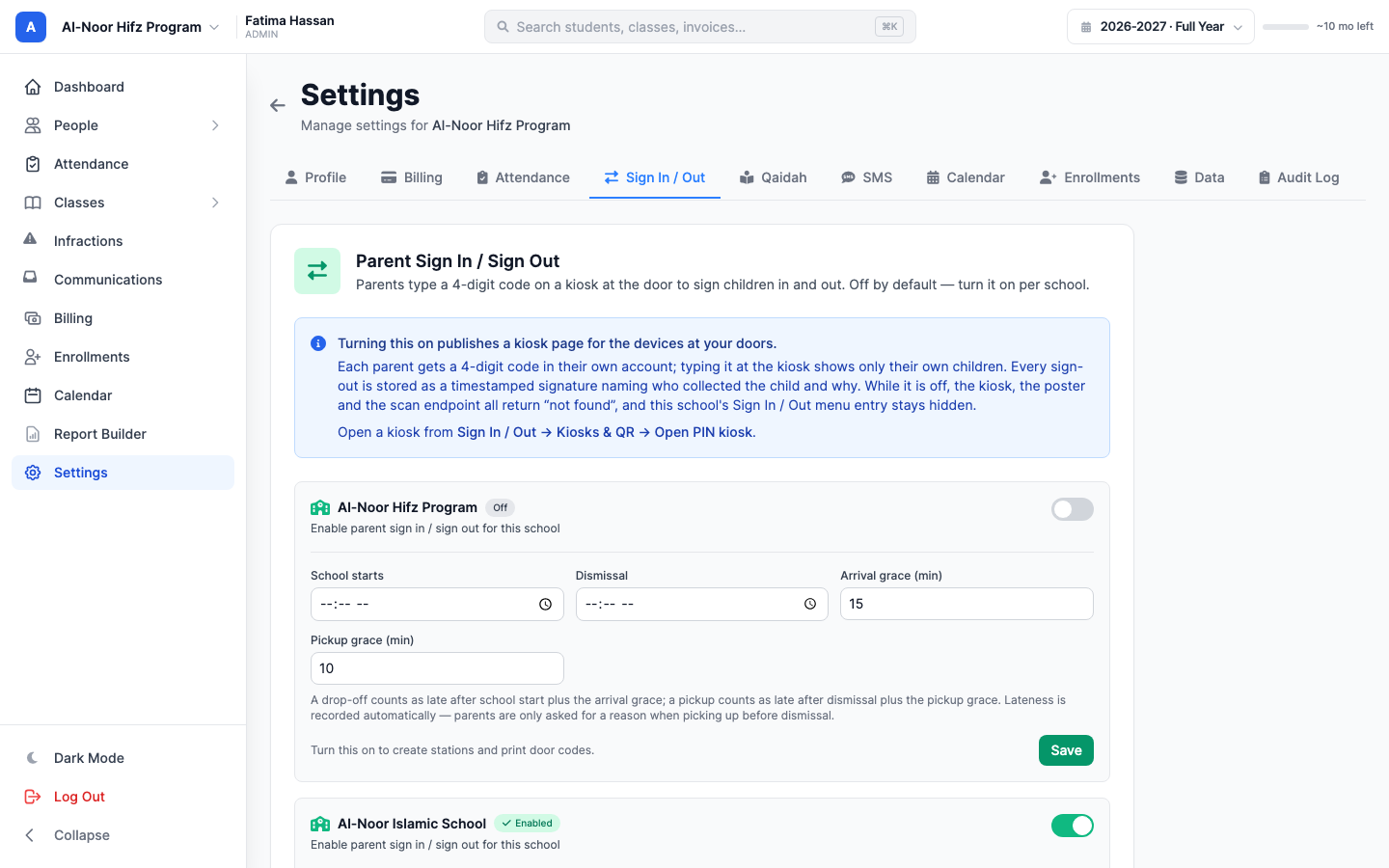
On each school card you set four numbers:
- School starts — the time the school day begins.
- Dismissal — the time the school day ends.
- Arrival grace (min) — how long after the start time a drop-off is still on time. Defaults to 15.
- Pickup grace (min) — how long after dismissal a pickup is still on time. Defaults to 10.
These are what "late" means. A drop-off counts as late after school start plus arrival grace; a pickup counts as late after dismissal plus pickup grace. Lateness is recorded automatically from the timestamp — nobody is ever asked to declare it.
One thing worth doing properly at this step: set a dismissal time. If you leave it blank the feature still works, but no pickup can ever be counted as late, and MarkTrack will tell you so with a warning on the card — "This school is live without a dismissal time, so no pickup can be counted as late." Every late-pickup number in the rest of this guide depends on it.
Press Save. A Sign In / Out entry now appears in the left sidebar for that school. Only administrators and teachers see it; parents and students never do.
Part 2 — Creating a kiosk
A kiosk is one place where parents sign in or out: the front door, the carpool line, a single classroom. You create one per place. Open Sign In / Out from the sidebar, then the Kiosks tab, and press + New Kiosk.
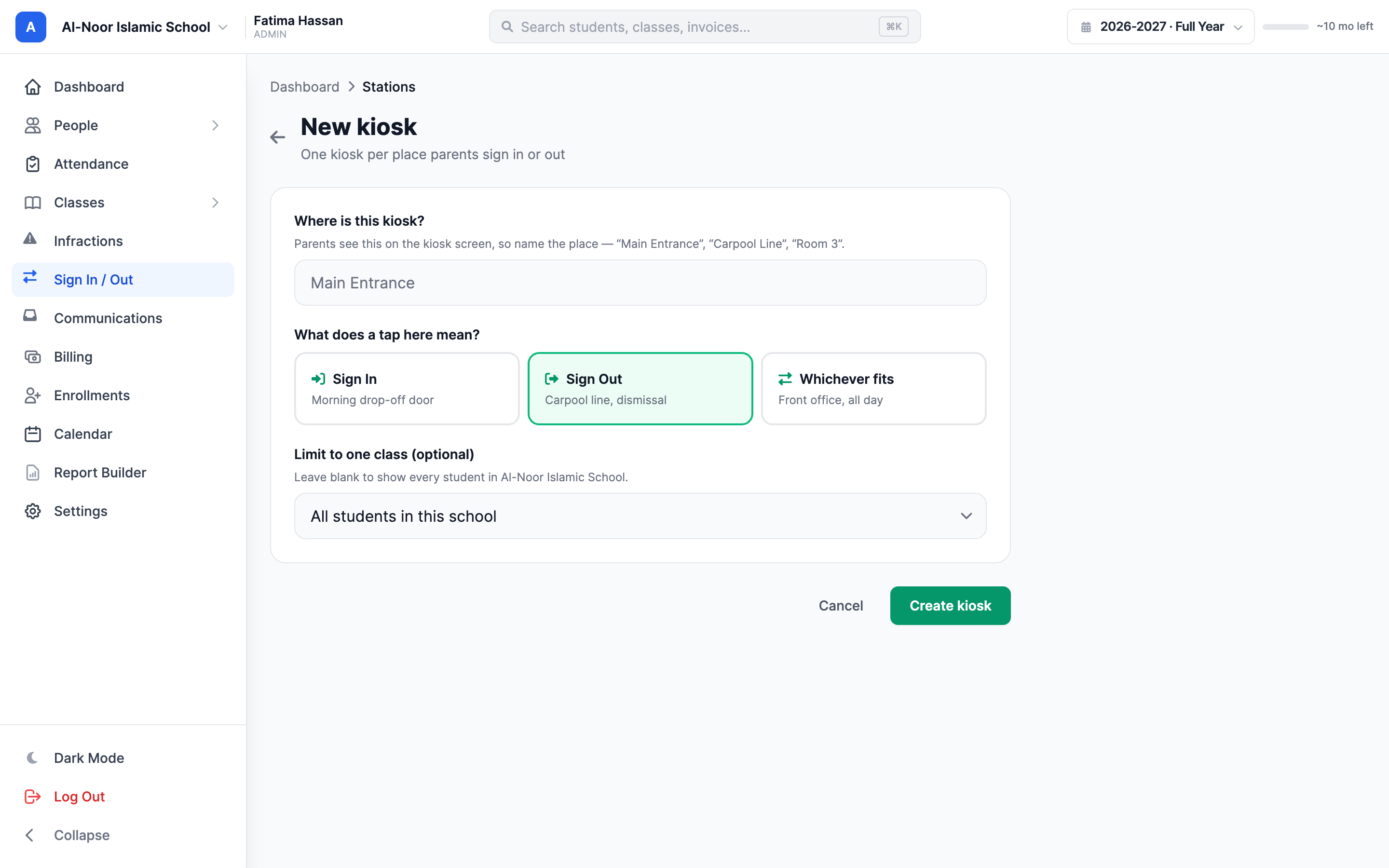
Where is this kiosk?
Name the place, not the device. Parents read this on the screen in front of them, so "Carpool Line" and "Room 3" tell them they are in the right queue; "iPad 2" does not.
What does a tap here mean?
Three choices, and this is the one setting worth thinking about:
- Sign In — morning drop-off door. Every tap here records an arrival, whatever the child's current state.
- Sign Out — carpool line, dismissal. Every tap records a departure.
- Whichever fits — front office, all day. MarkTrack decides per child: a child currently on campus is signed out, a child who is not is signed in. The parent can override it before confirming.
Pick the fixed modes for doors that only ever do one thing. A morning door that is set to "Whichever fits" will happily sign a child out if they were already marked in, which is not what anyone at that door means.
Limit to one class (optional)
Leave this blank and the kiosk offers every student in the school. Choose a class and it offers only that class's roster — the right choice for a tablet on a single classroom door.
There is a safety behaviour here worth knowing. If you later archive the class a kiosk is pointed at — the normal end-of-year action — that kiosk does not quietly widen into a whole-school door. It stops working, shows a Needs attention badge, and says "This kiosk is no longer working — its class was archived." Failing closed is deliberate: a Year 4 door must never silently become a door that can release any child in the building.
Press Create kiosk. MarkTrack confirms: "Carpool Line is ready. Open the kiosk link on the door device to start."
Part 3 — The Kiosks page, and the two links
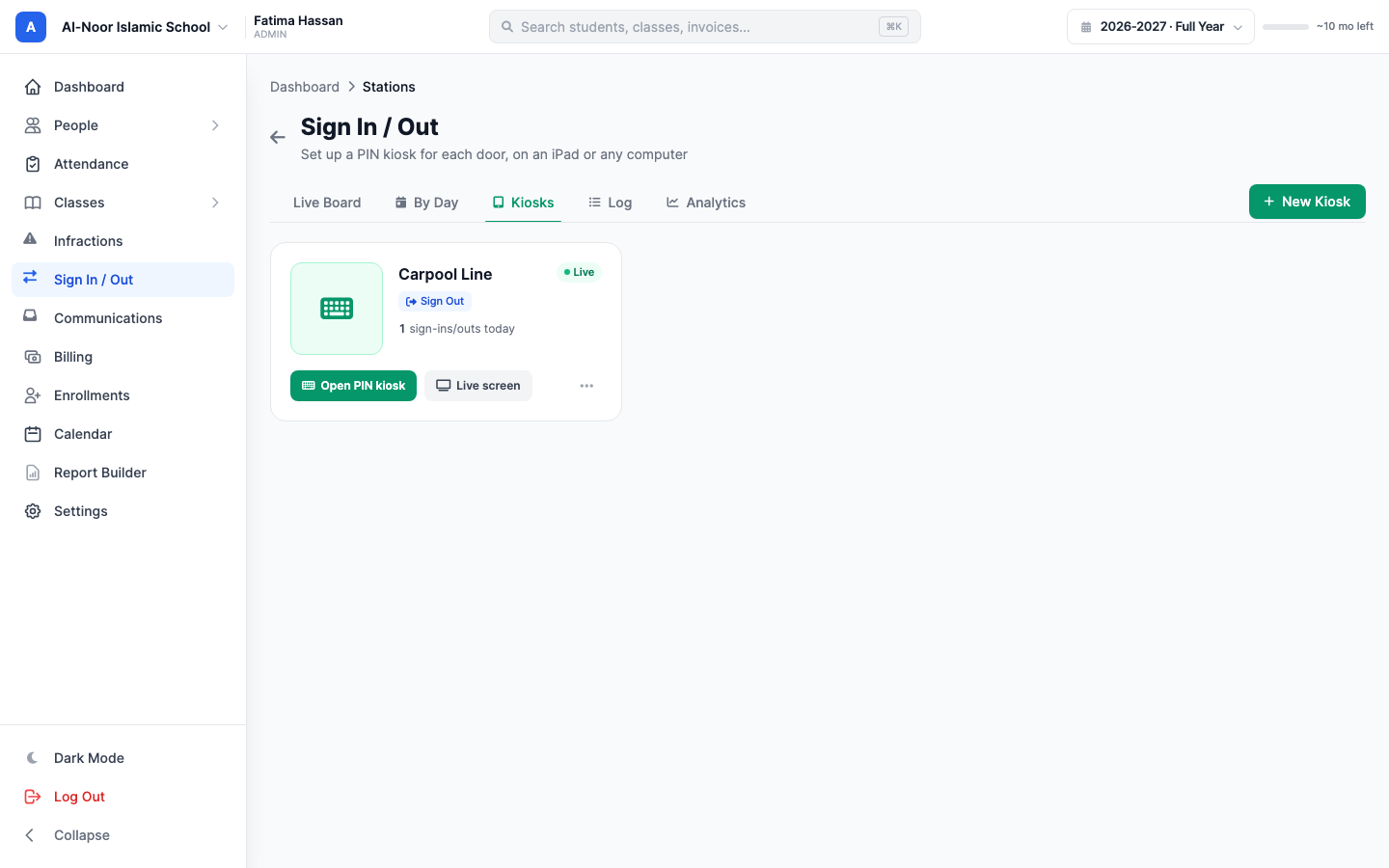
Every kiosk card carries two buttons, and they are not the same thing:
- Open PIN kiosk — the keypad parents actually use. Open this on the tablet at the door.
- Live screen — a read-only board for a lobby display. It shows who is still on campus and who has just been collected. Nobody can sign anyone in or out from it.
They have separate links on purpose, so you can reissue one without disturbing the other. Both live in the kebab (⋯) menu: New PIN kiosk link and New live-screen link. Use them if a link has been shared somewhere it should not have been — MarkTrack warns you that any device currently showing that screen will need reopening.
The same menu holds the rest of the day-to-day controls:
- Edit kiosk — change the name, mode or class.
- Pause / Make live — take a door out of service without deleting it. A paused kiosk shows parents "This code is no longer active."
- Delete — removes the kiosk and warns you that "Its sign-in history is kept." Deleting a door never deletes the record of who came through it.
Part 4 — Giving parents their code
Every parent needs a 4-digit code. There are two ways to get one, and both work at any time.
The parent does it themselves
A parent signs in and opens My Children. If their school has the feature on, they see a Your sign in / sign out code card.
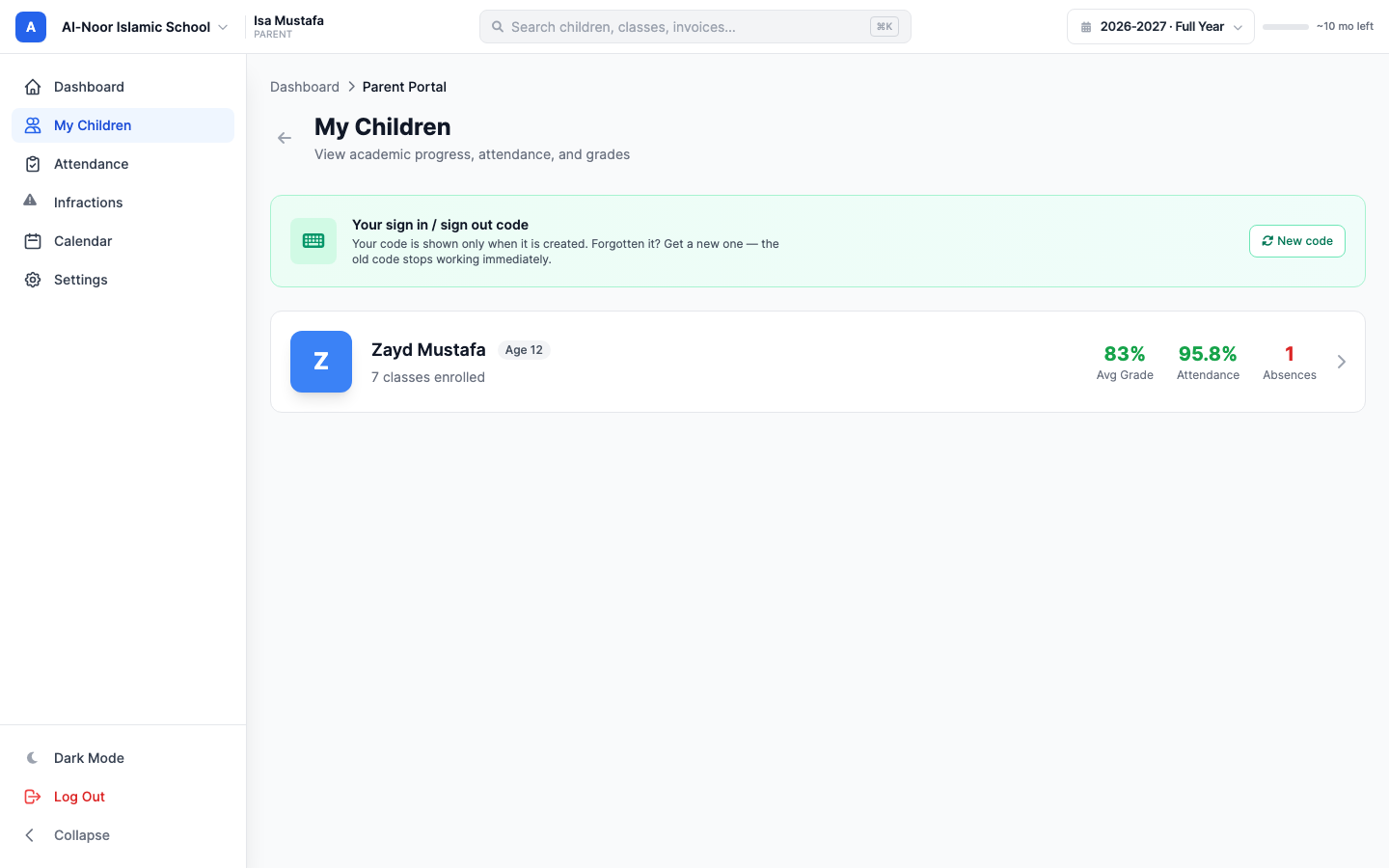
They press Create code and the four digits appear once. It is also emailed to them, subject line "Your new sign in / out code for [your school]", so there is a copy in their inbox to search for later.
If they forget it, they press New code. MarkTrack asks "Get a new code? Your current code stops working immediately." — the old one dies the moment the new one is made.
The office does it for them
Open the parent's profile — People → Parents → the parent — and look for the Sign in / out kiosk code card.
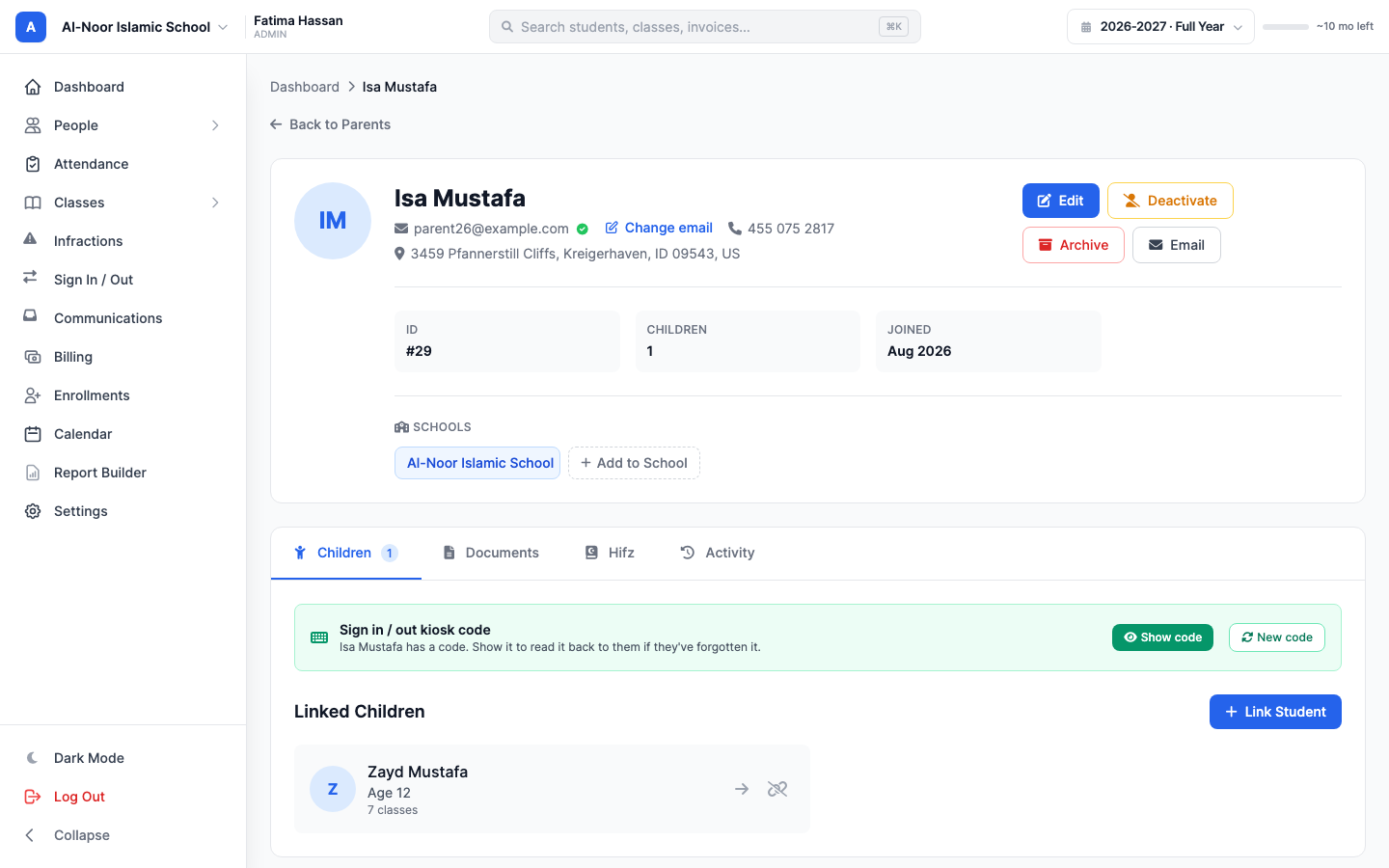
The card does one of three things, depending on the family:
- No code yet — press Create code. The digits appear, and the parent is emailed a copy.
- They have a code and have forgotten it — press Show code. The digits appear on screen so you can read them out, and hide themselves again after 30 seconds. Nothing changes for the family: the code they already have keeps working.
- They have shared it, or you want it changed — press New code. MarkTrack confirms "Issue a new code for [parent]? Their current code stops working immediately."
Two details that matter at a busy front desk. First, Show code is for reminding, New code is for replacing — reach for the first one when a parent has simply forgotten, or you will send them away with a code their partner does not have. Second, whenever a new code is issued MarkTrack tells you plainly whether the family could be emailed. If it could not — no address on file, or a previous email hard-bounced — you get a warning instead of a success message, telling you to hand the code over directly. A family carrying a code that has been silently replaced is exactly the family that gets stuck at the door.
Reading a code back is an administrator action, and every reveal is written to the audit log. Teachers can see whether a family has a code; only admins can read it.
Part 5 — What the parent does at the door
Open the Open PIN kiosk link on the tablet at your entrance and leave it there. This is the whole parent-facing experience.
Step 1 — Type the code
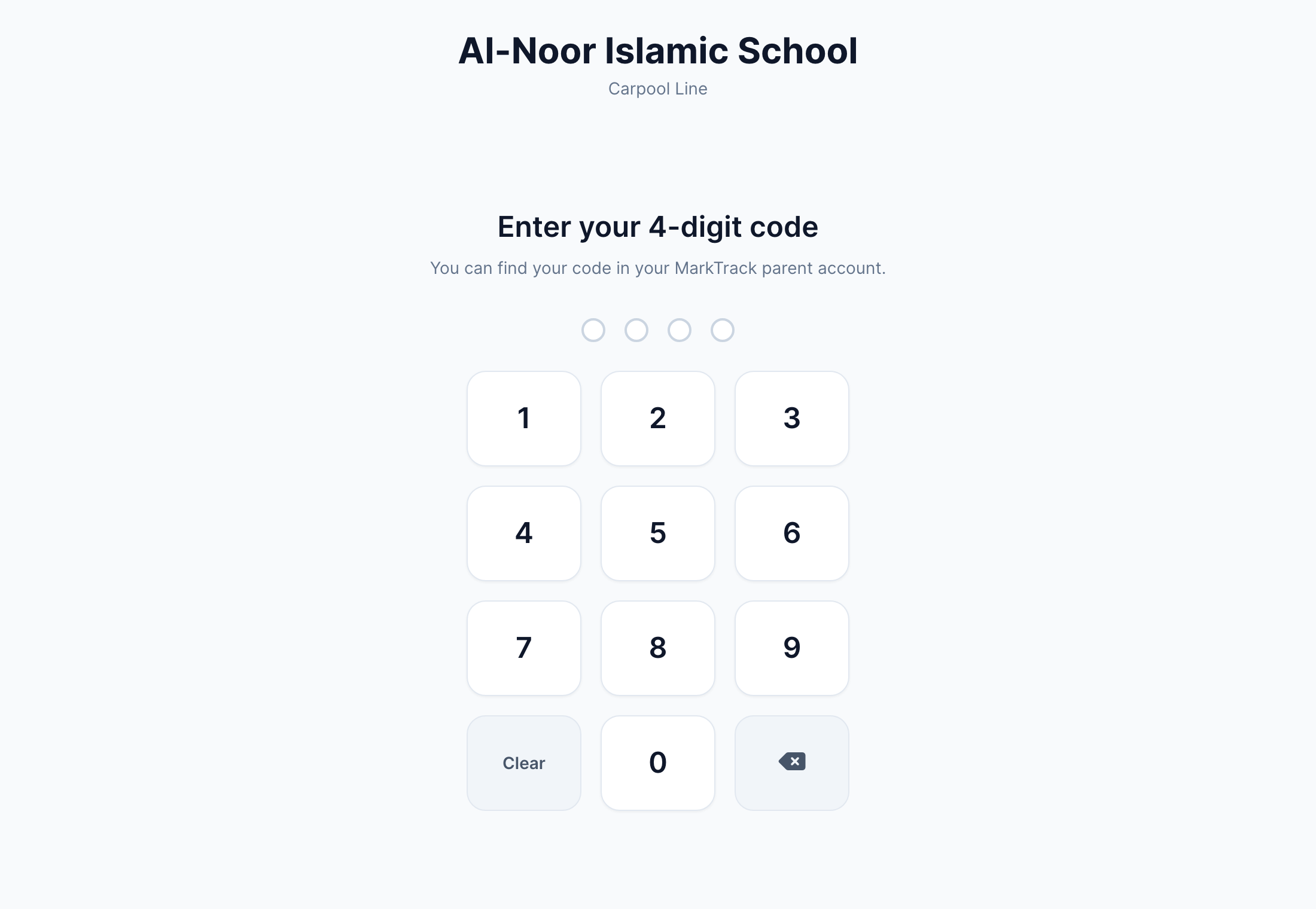
Four dots fill as they type. There is no Enter key — the moment the fourth digit lands, the code is checked. A wrong code says "That code was not recognised. Please try again or see the front office." and clears the pad.
After five wrong codes in a row the pad locks for a minute and says how long is left, counting down. Keep guessing and the wait doubles, up to a ceiling of about sixteen minutes. This is the main thing standing between a four-digit code and someone patiently trying numbers at your door, which is also why it is worth telling a parent their code has changed rather than letting them discover it in the pickup queue.
Step 2 — Choose children and sign
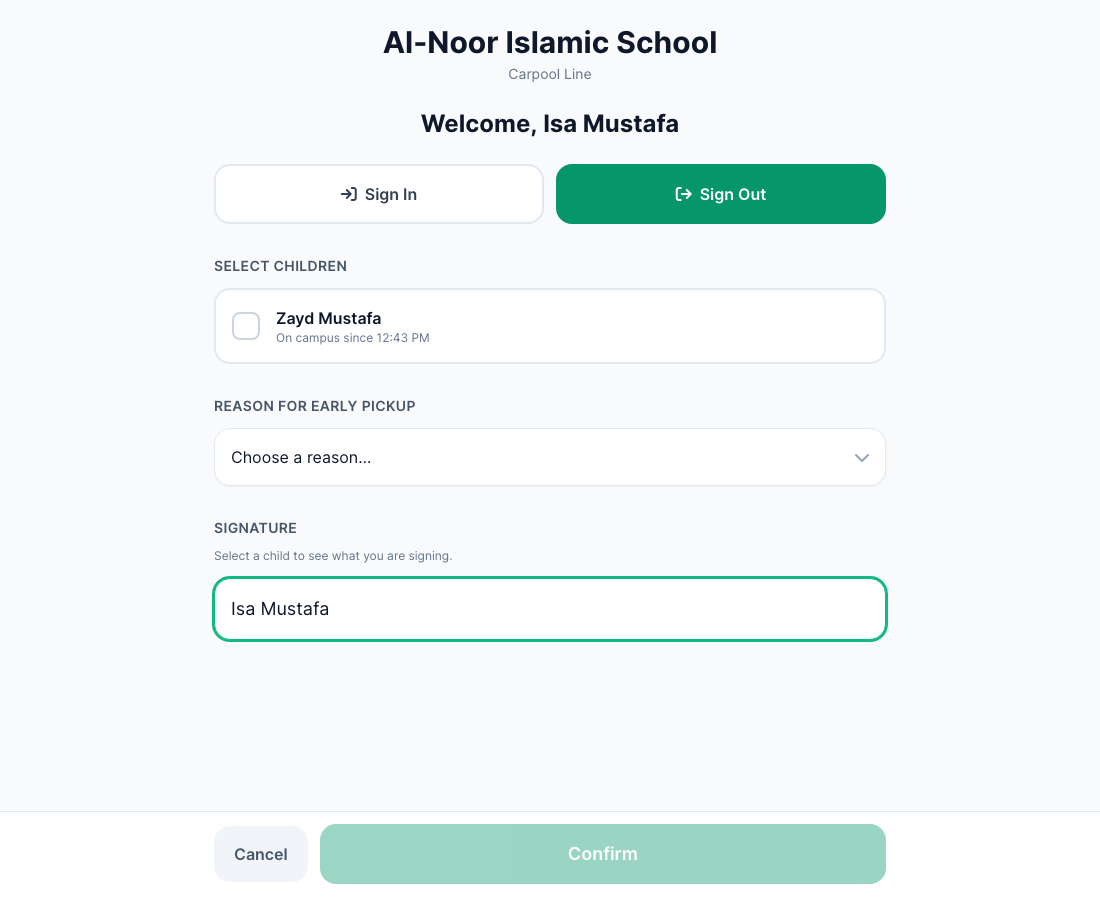
The screen greets the parent by name and shows only their own children at this school. A code belonging to another family can never reach these children, and this family's code can never reach anyone else's.
Working down the screen:
- Sign In / Sign Out — two large buttons rather than a switch, so a parent is never unsure which way they just signed their child. On a fixed-mode kiosk the direction is already set.
- Select children — each child with their live status: "On campus since 2:41 PM", "Signed out at 3:20 PM" or "Not signed in today". Tick as many as they are collecting, up to ten in one go.
- Reason for early pickup — appears only for a sign-out before dismissal. The choices are Early dismissal, Medical appointment, Illness, Late arrival, Family emergency and Other. A normal end-of-day pickup is never asked for a reason, and a late one is not either — lateness records itself.
- Signature — above the box, the exact sentence they are agreeing to, with the real names in it: "I, Maryam Bukhari, confirm that I am collecting Aaliyah from this school." They type their name underneath.
Confirm stays greyed out until a child is ticked, a reason is chosen if one is needed, and a name is typed. If the screen is left untouched for 45 seconds it clears itself back to the keypad, so one family's children and names are never left on a tablet for the next person in the queue.
Step 3 — Done
A green tick, "Thank you, [name]", and one line per child — "Zayd Mustafa signed out at 3:14 PM". It returns to the keypad on its own after six seconds, ready for the next family. If one child in a group could not be recorded — already signed out a minute ago, say — the successes still stand and the parent is told exactly which one did not go through.
Part 6 — The lobby screen
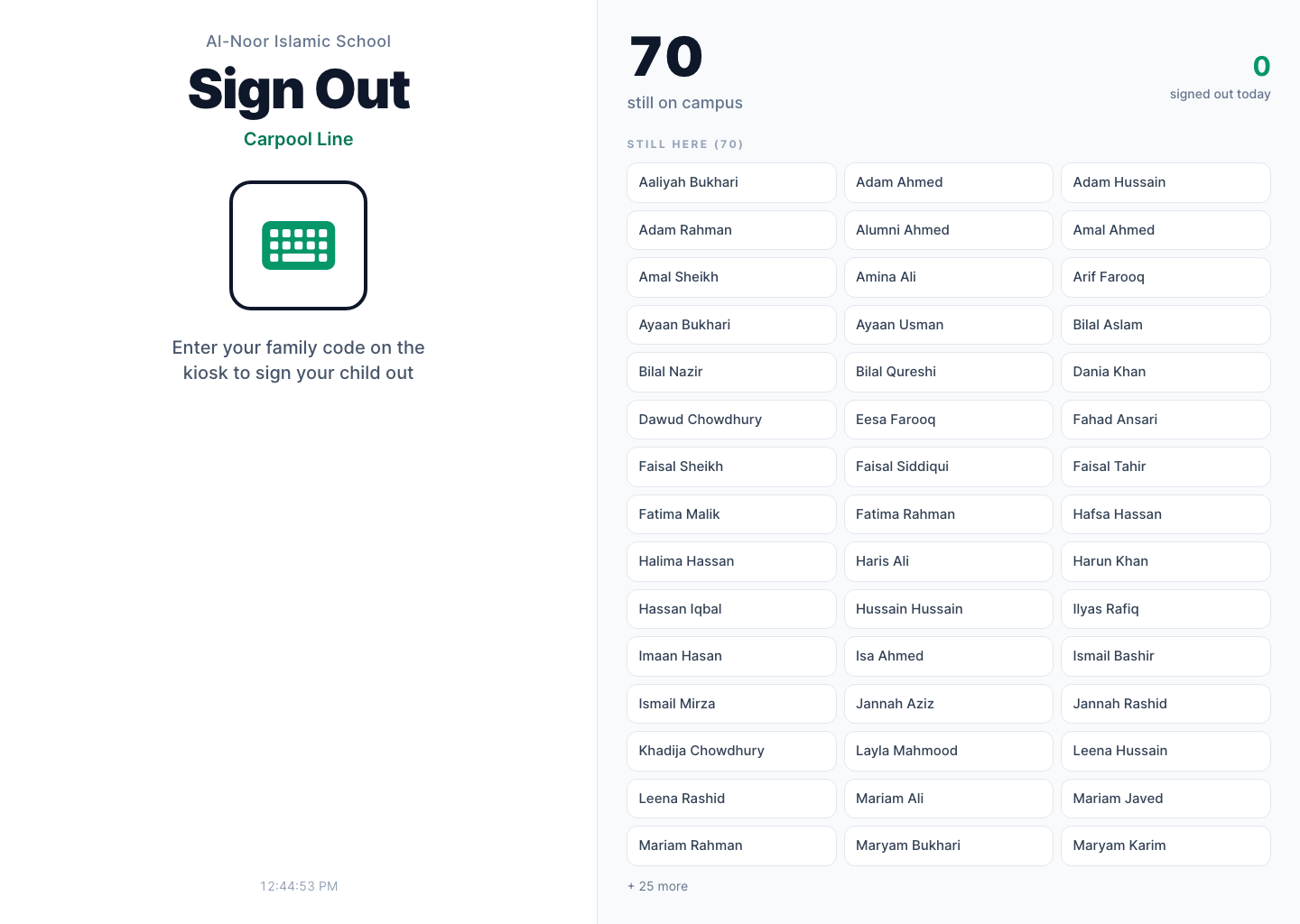
Open the Live screen link on a second tablet or a wall display. It shows how many children are still on campus, how many have gone, the six most recent departures with times, and a grid of everyone still here. It refreshes itself every fifteen seconds and needs no login. It is read-only — a lobby screen can never release a child.
Part 7 — What the office sees
Four staff screens sit behind Sign In / Out in the sidebar, as tabs across the top.
Live Board
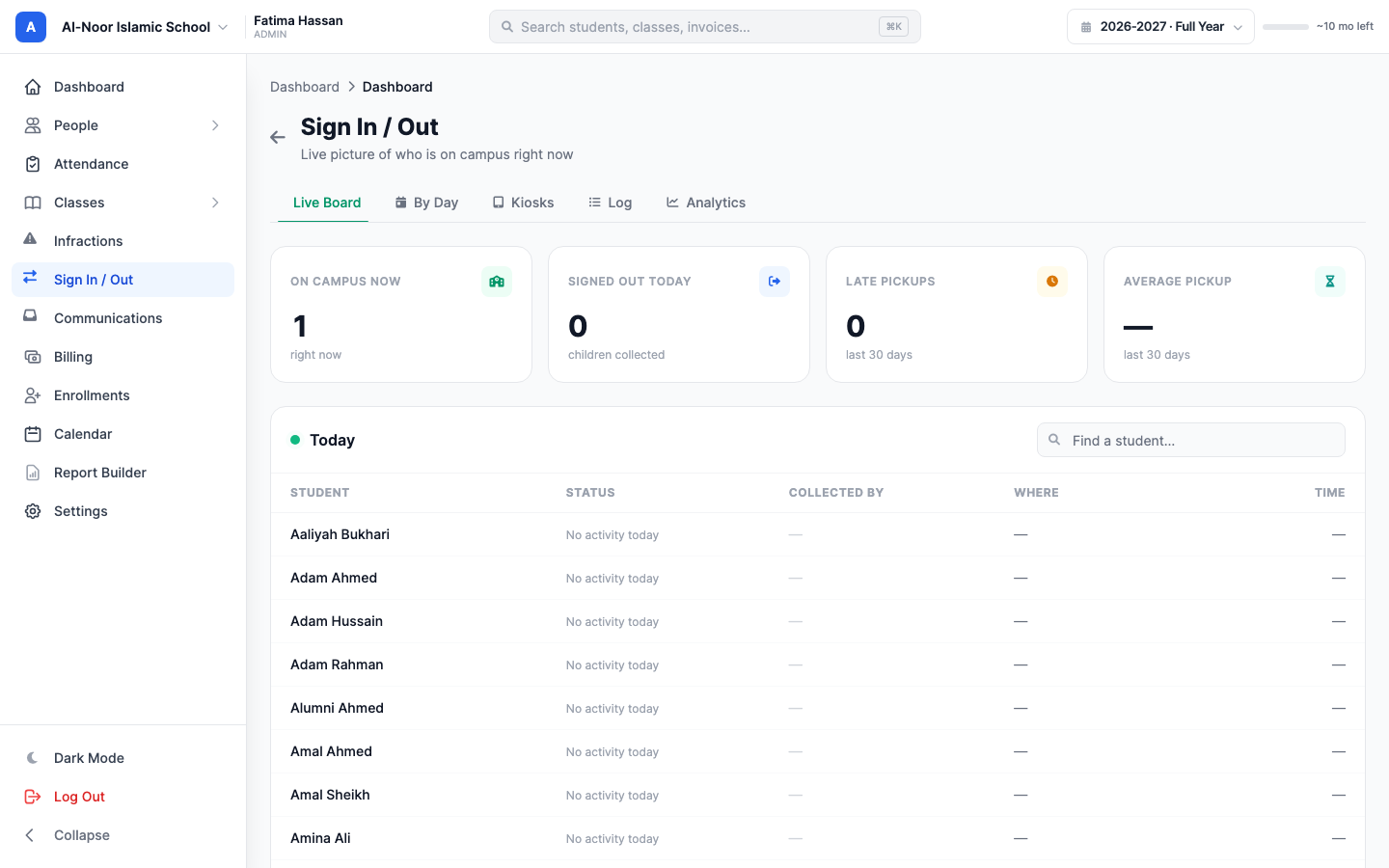
Four numbers across the top — On campus now, Signed out today, Late pickups and Average pickup — then a table of every student with their status, who collected them, which door, and when. There is a search box for finding one child fast, and the table refreshes every fifteen seconds by itself. It politely stops refreshing while you are typing a search.
By Day
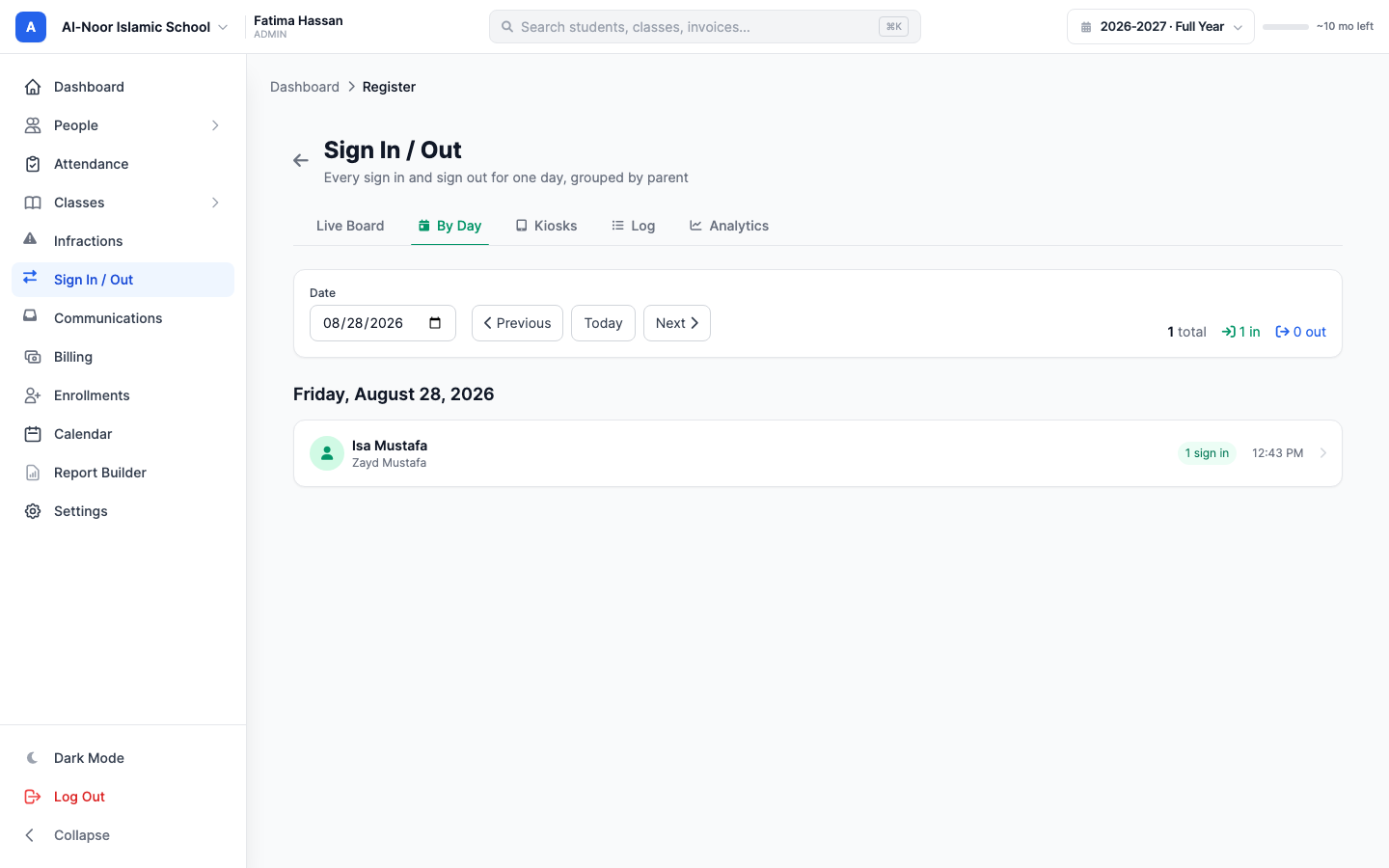
Pick a date and see that day's movements grouped by parent, busiest first. Click a family to see each individual record: the reason given, the signature, which kiosk, and the sentence they attested to. Anything recorded without a parent account — a grandparent at the desk, or an entry the office made — is listed separately under Not linked to a parent account.
Log
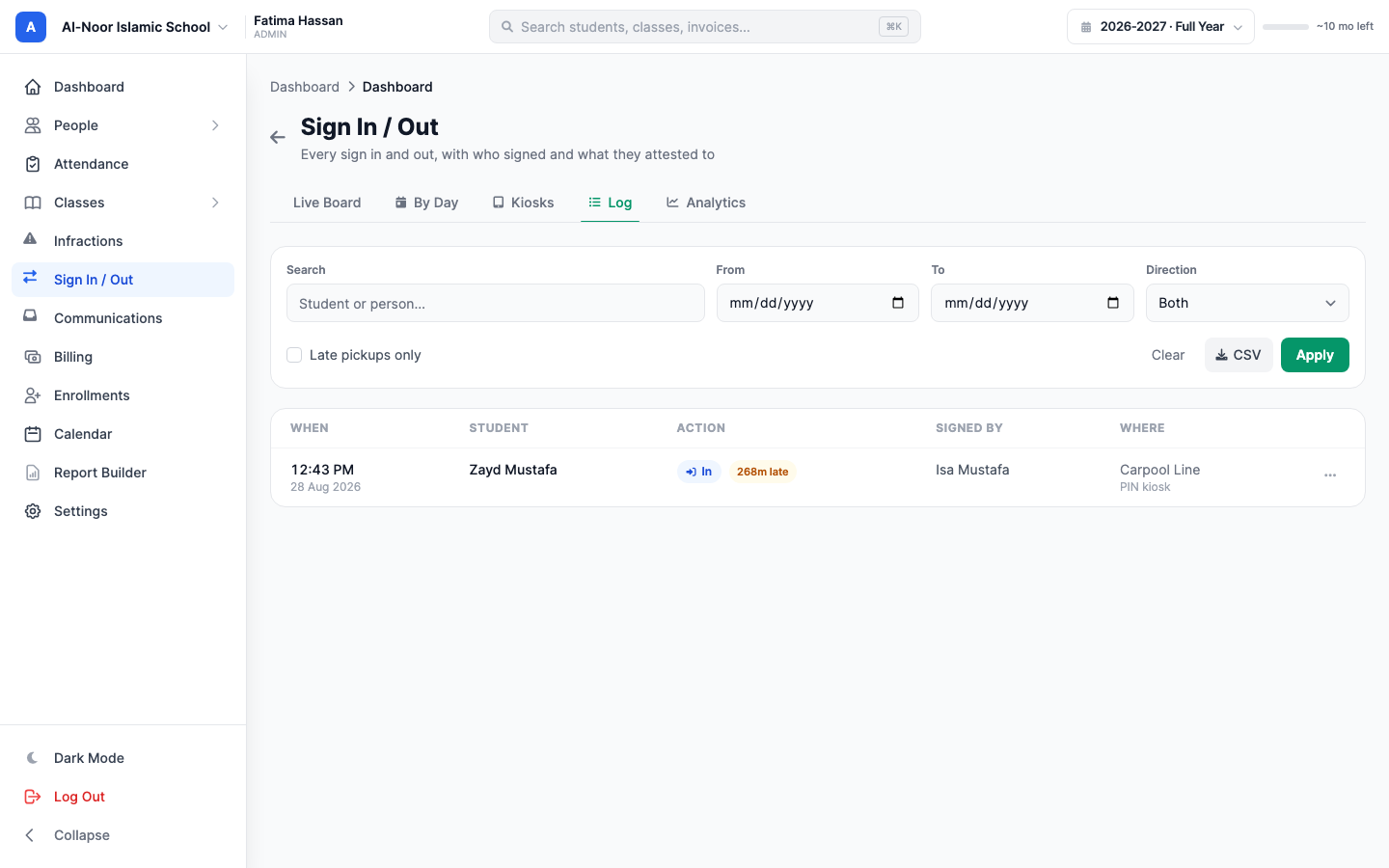
The complete history. Filter by name, date range, direction, or Late pickups only. Each row opens to show what was attested — the exact sentence, the time it was signed, and the IP address it came from.
If an entry is wrong, staff can Void it. Voiding is not deleting: MarkTrack says "Void this entry? It stays in the log, marked as voided." The record remains, marked, and drops out of the boards and the figures. A pickup record that could be quietly erased would not be worth much the one time it mattered.
CSV exports what you are looking at, including the columns that make it evidence: the person, their relationship, minutes late, time on campus, the attested statement, and when it was signed.
Analytics
Patterns over a date range, with 7, 30 and 90-day shortcuts: total events, late pickups, average pickup time, average length of day, a daily volume chart, and a histogram of when children actually leave in 15-minute bands — usually the fastest way to see that your official dismissal time and your real one are twenty minutes apart.
Underneath sit three leaderboards: Late pickups by family (with the rule stated in plain English — counted after dismissal plus your grace), Most pickups, and Collected by someone else, which groups departures by relationship so you can see how often a child leaves with a grandparent or an uncle rather than a registered parent.
Part 8 — The record you are left with
Every completed sign-out stores: the child, the direction, the exact time, the person's typed name and relationship, the kiosk, the reason if one was needed, minutes late, and the full sentence they agreed to with the timestamp of the signature.
Lateness is worked out once, when the record is written, and frozen. Changing your dismissal time next term adjusts what counts as late from then on — it never quietly rewrites last term's history.
A short setup checklist
- Settings → Parent Sign In / Sign Out — enable your school and set start, dismissal and both grace values. Do not skip dismissal.
- Sign In / Out → Kiosks → + New Kiosk — one per door, named for the place, with the right mode.
- Open Open PIN kiosk on the door tablet. Open Live screen on the lobby display if you have one.
- Issue codes — either ask parents to create their own from My Children, or create them from each parent's profile.
- Watch the Live Board for the first week, and check Analytics after a month.
Two habits worth forming early: when a parent forgets their code use Show code rather than New code, and when you do issue a new one, make sure it actually reaches them. Almost every problem at a keypad is a family holding a code nobody told them had changed.
Related reading
Interested in trying out MarkTrack for free?
Get in touch